CoversLesson
How to start from a cover template
Open Templates on a cover, pick a design, and apply it. The full wrap fills in at your book's trim and page count, and every line of text stays editable.
In short
On a cover, click Templates in the tool rail on the left, open a design, and click Apply to my cover. The full wrap fills in at this book's size, and every line of text stays editable.
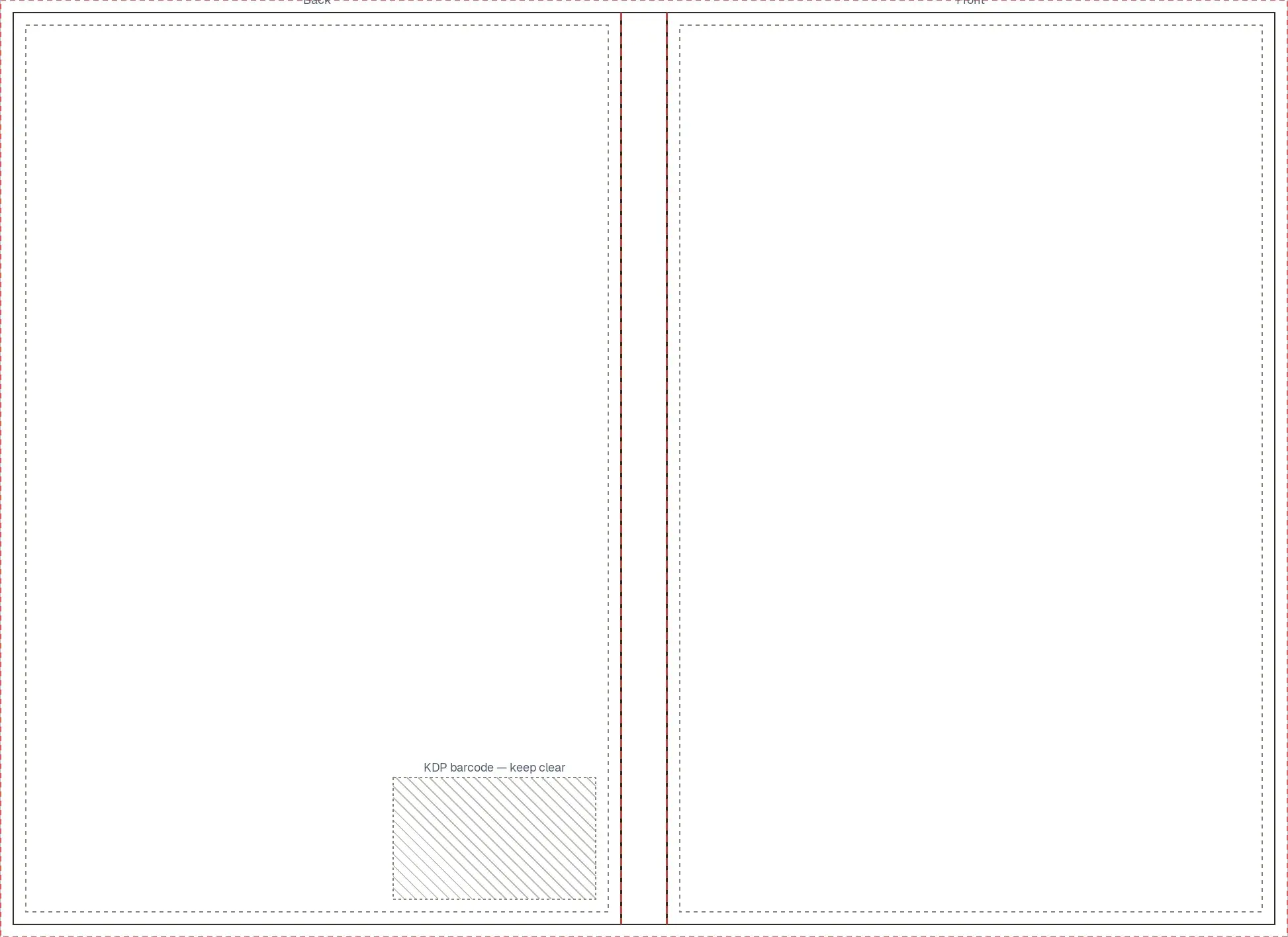
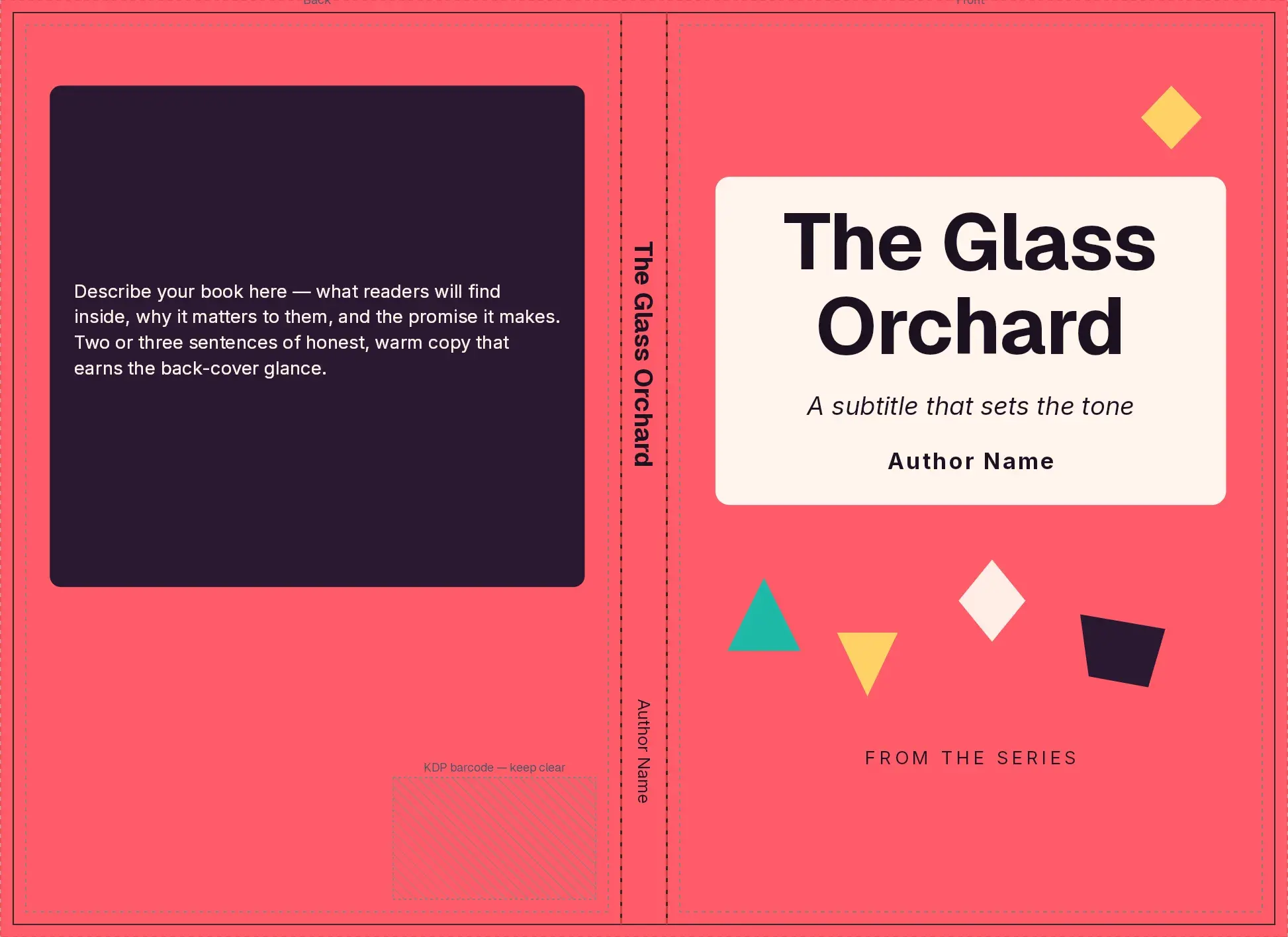
A KDP cover is one full wrap: the back, the spine, and the front together, and the spine is only as wide as the page count makes it. A template lays that wrap out at this book's size, instead of leaving you a blank page with the title still to place. The title, the author line, and the back-cover copy land as text you can retype. You can see whether the layout fits before you order a proof.
Start from a template#
Open Templates
Open your cover. In the tool rail on the left, click Templates. The Templates panel opens. Design my cover with AI sits at the top. The designs are below it.
Search for a design
Click the search box that reads Search by name, style, or genre… and type words from the design you want. The list narrows to the matches.
A design with no badge applies on every plan. In the row of All, Free, and Pro, click Free to keep only those. A design marked Pro needs a higher plan.
Read the text slots
Click the design. The panel shows the full wrap — back, spine, and front — at this book's size, then Text slots.
Title and Spine title say Your title when Title is filled in under Book details. Click the project name at the top of the editor to open it. Leave Title blank and those slots say Placeholder too. Author, Subtitle, and the other slots say Placeholder until you replace them.
Apply it to the cover
Click Apply to my cover. On an empty cover the design lands at once, and the panel says Template applied. If the cover already has something, choose Replace design or Merge underneath.
Replace the placeholder words
Click All templates. At the top of the panel, Current design lists each line. Click Edit next to Author, type your name over the sample words, and press Escape. The cover updates with it. Double-clicking a line on the cover does the same thing.
See it on the wrap#
Drag the divider to compare. The title is the book's own. The other lines are still the template's sample words.
Take the template off#
Press ⌘Z to take off the design you applied.
To try another design, open it and click Apply to my cover again. When the cover already has something, the panel asks you to choose. Replace design swaps the previous template's layers and keeps pictures and text you added yourself. Merge underneath layers the new design under everything already there. Either choice is one undo.
For what KDP checks in a cover file, read KDP cover file requirements.
Common questions
Can I change a template's colors after I apply it?
Yes. Open Templates and look at Current design. Under Colors, each swatch is one color in the design. Changing a swatch updates every place that color is used, and it is one undo.
Does my author name from Book details print on the cover?
No. Only the title does, and only when Title is filled in. The author, the subtitle, the series line, and the back-cover blurb stay as the template's sample words until you edit them on the cover.
Are cover templates free?
Free designs apply on every plan, including Free and Creator. A design marked Pro needs Publisher, Studio, or Founders' Lifetime. Until then you can open it, and the button says Unlock & apply instead of placing it.
Will a template delete pictures I already added?
No. Pictures and text you added yourself stay. If the cover already has something, you choose Replace design or Merge underneath. Replace swaps the previous template's layers. Merge puts the new design under everything already there. Either one is a single undo.
Does the template update when my page count changes?
Not by itself. The preview and the apply use the trim and page count the cover has now. If a linked book's page count changes later, the editor says the spine was computed for the old count. Update spine resizes the wrap and moves objects with their panel. At 79 pages or fewer, KDP prints no spine text, so the spine title comes off.
Try it on your own book
Open a book in SmartKDP and follow the steps above. It takes about 6 minutes.