Text and typeLesson
How to add text effects to a book cover
Add an outline, shadow, glow or 3D depth to your cover title, stack several at once, and keep the title readable at the thumbnail size shoppers see first.
On this page
In short
Click your title on the canvas, then click Text effects in the toolbar along the top of the canvas. Pick an effect such as Outline or Shadow: it applies at once, keeps its own controls, and stacks with any others you add.
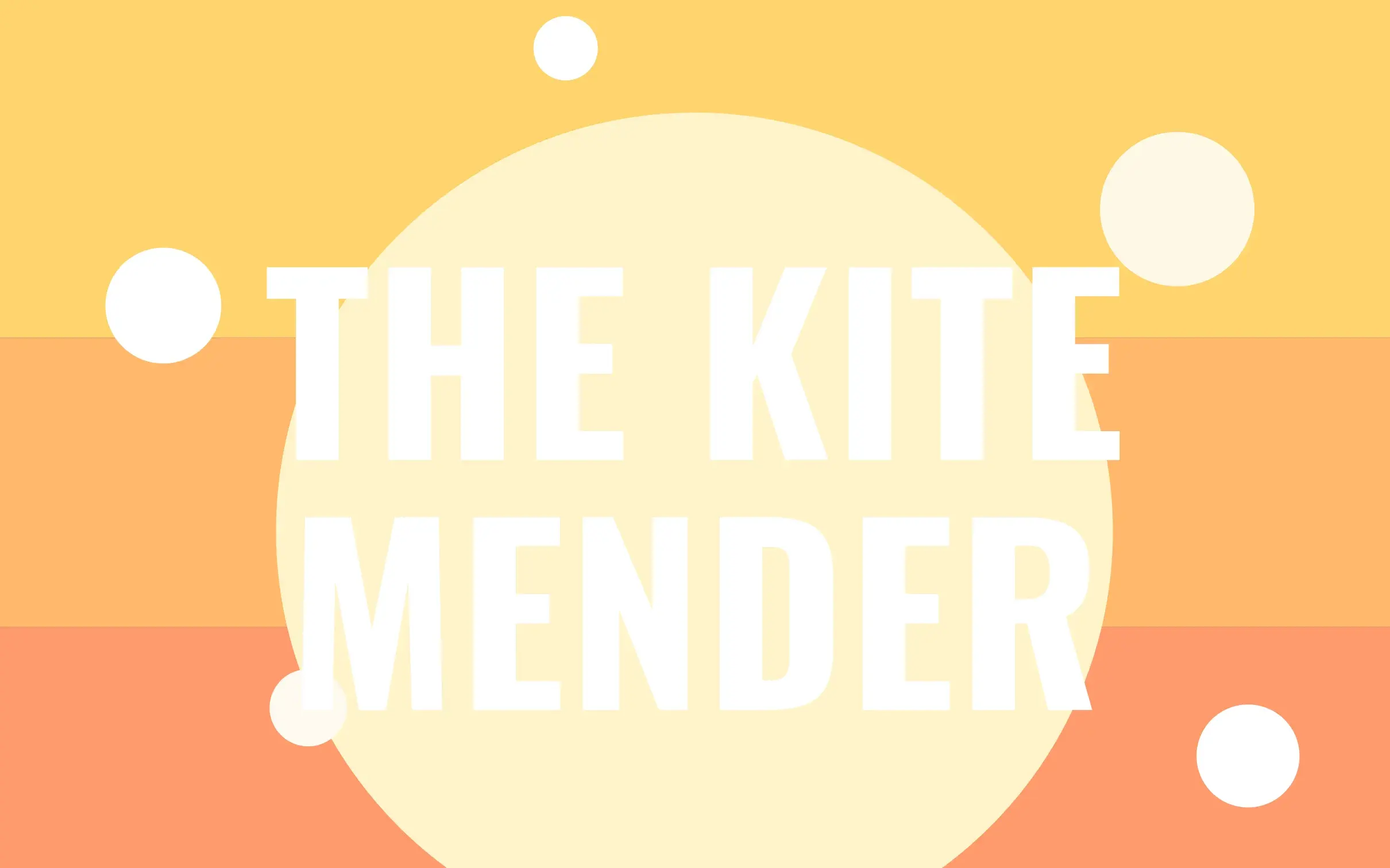
A cover title has to read at the size shoppers first see it, a thumbnail on a search page no bigger than a postage stamp. White or pale type over light or busy artwork fades into it at that size, even when it looks fine on a full-size screen. An outline or a shadow separates the letters from what is behind them without touching the artwork. Fix it here, before the cover goes live, not after the listing has been scrolled past.
Add effects to your title#
Select your title
Click the title on your cover. A box appears around it, and a toolbar for the text opens along the top of the canvas, starting with the font and size. If the title is part of a cover template, one click still selects the words.
Open Text effects
In the toolbar, click Text effects, the letter A with a faint copy behind it. A panel opens with twelve effects: Shadow, Lift, Outline, Hollow, Echo, Splice, Neon, Depth, Background, Underline, Strikethrough and Glitch.
Add an outline
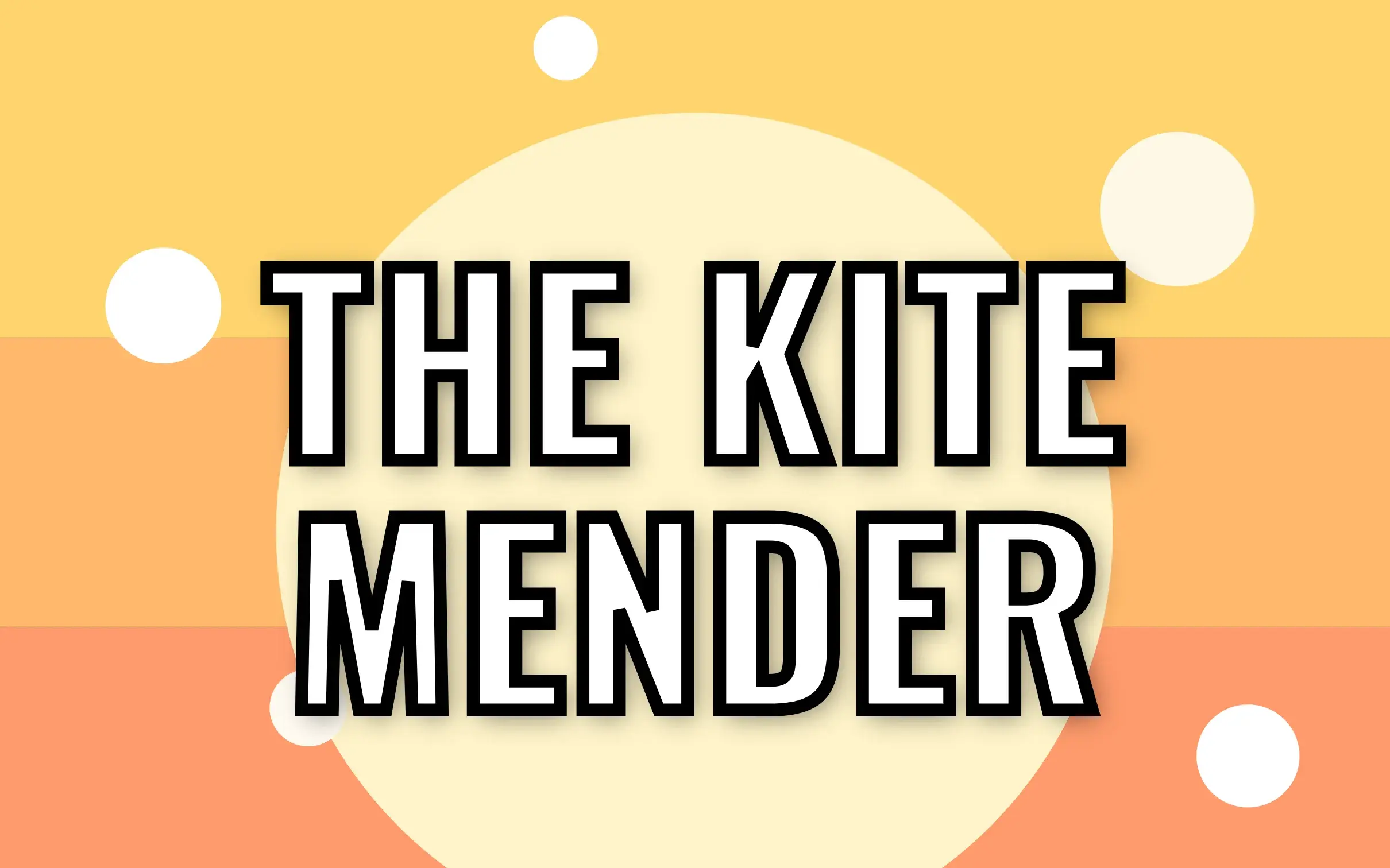
Click Outline. A dark edge appears around every letter straight away, and the panel shows the outline's Width and a color swatch. The outline starts black; click the swatch to pick a dark color from your artwork instead.
Add a shadow under it
Click Shadow. It joins the outline instead of replacing it, and both are listed under the effect buttons. The shadow's own controls appear: Offset X, Offset Y, Blur and its color.
An outline always sits on top of the letters and a shadow always under them, whatever their order in the list.
Fine-tune an effect
Click an effect in the list to show its controls, then drag a slider. Here the outline's Width goes from 2pt to 4pt, and the canvas redraws as you drag. To take an effect off, click the × beside it.
Five effects on one title#
Drag the divider to compare. Switch the right side to see how each effect lifts the same white title off the same artwork.
Reading the Text effects panel#
| In the panel | What it does |
|---|---|
| Shadow | A soft copy of the letters, offset behind them |
| Lift | A softer shadow straight below the letters |
| Outline | An edge around every letter, drawn over it |
| Hollow | Letters drawn as outlines only, in the text's own color, so the artwork shows through them |
| Echo | Copies of the letters trailing behind them, each fainter than the last |
| Splice | One copy of the letters in a second color, offset behind them |
| Neon | A colored glow around the letters |
| Depth | A stepped 3D edge that shades from a Near color to a Far color |
| Background | A rounded block of color behind the words |
| Underline, Strikethrough | A line under or through the words. The toolbar has its own buttons for both |
| Glitch | An Echo and a Splice added together, listed as two effects you can change one at a time |
The order of the list matters between effects that both sit under the letters, such as a Background and a Shadow: the one higher in the list is drawn in front. Drag an effect up or down the list to change it.
Remove an effect#
Click the × beside an effect in the list to take it off, or Clear all effects to remove every effect at once. Effects never change the words underneath: you can retype the title, change its font or resize it at any time, and the effects redraw around the new text.
For the rest of what makes a cover title work at thumbnail size, read How to design a KDP book cover yourself.
Common questions
Can I use more than one text effect at a time?
Yes. Each effect you add joins a stack instead of replacing the last one, and each keeps its own controls. An outline with a shadow under it is the most common pair for a cover title.
Will the effects print the way they look on screen?
Yes. Your print file is drawn from the same design as the canvas, so the outline, shadow or glow you see is the one you export. Colors can still shift a little in print, as they do for everything on a cover.
Does a text effect stop the text being editable?
No. Effects belong to the text, not to a picture of it. You can retype the words, change the font or resize the box at any time, and the effects redraw around the new text.
Why are some effects greyed out?
Underline and Strikethrough are off on curved text, because a straight line cannot follow a curve. On an AI font the whole Text effects button is off: its letters are pictures, so there is nothing for an outline or shadow to trace.
Do text effects need a paid plan?
No. Every effect in the Text effects panel works on every plan, including Free.
Try it on your own book
Open a book in SmartKDP and follow the steps above. It takes about 5 minutes.