Page setup and layoutLesson
How to set up a book theme and brand kit
Open Style beside Layout, preview a theme on your own chapter, then apply its fonts and chapter opener to every page, and store shared colors in Brand kit.
In short
With your manuscript open in Layout, click Style on the right. Preview a theme on your chapter, click Use this style, then open Brand kit to keep colors and fonts with the book.
A finished chapter can look like a document until the type, the chapter number, and the spacing agree. A theme applies that look to the whole manuscript in one step, so you can judge it on your own words before you order a proof. Style holds the gallery, and Preview sets your first chapter in a theme without applying it. Brand kit stores colors and two font names with the book, for the cover as well as the interior.
Set the book's look#
Open Style
Open the book and stay in Layout. On the right, click Style. The panel heading is Style, and under it you read The book's theme, type, headings and spacing. Brand kit sits at the top of the list, then the themes. Click Style again and the panel closes.
Choose Drop cap
Above the cards are three menus: Genre, Mood, and Layout. Each starts on Any. Open Layout and choose Drop cap. The count under the menus reads 11 of 31 themes. The cards that stay are the themes with a drop cap.
Preview the chapter
Scroll the list to Serif Classic. Its card reads: Traditional novels and literary fiction with worded chapter numbers. Under the card, click Preview. A sheet opens at the top of the panel, marked Preview and titled Serif Classic, and lays your first chapter out in that theme. Wait until Laying out your chapter… clears. The pages are labeled Opening page and Next page. The button under the sheet reads Use this style.
Apply the theme
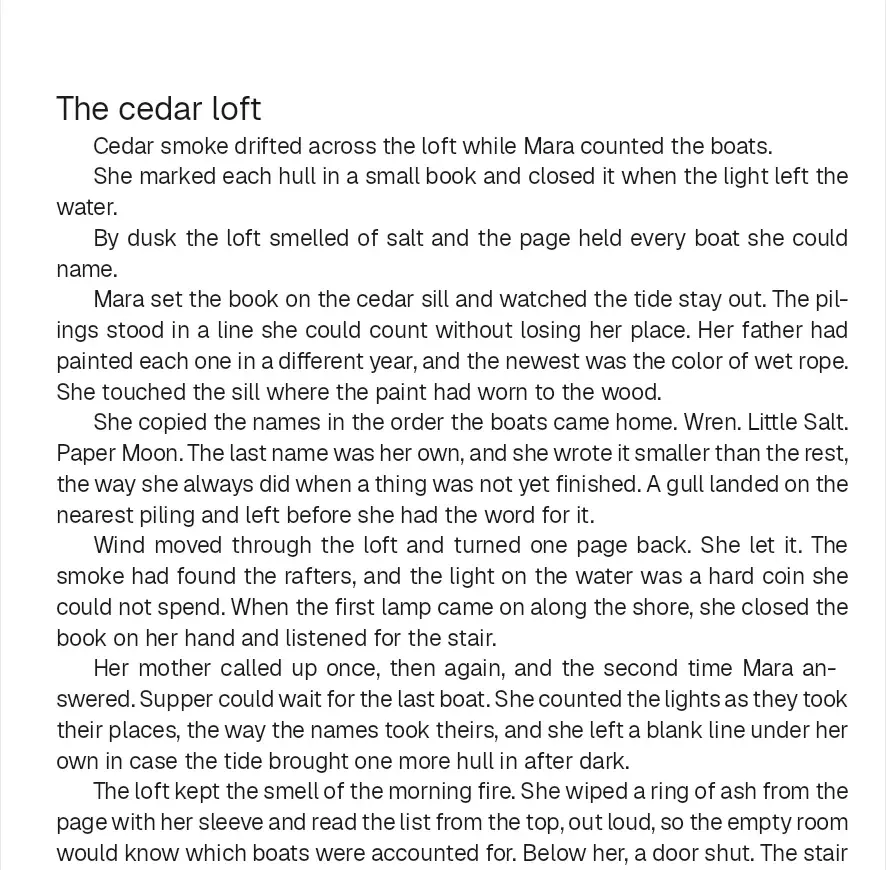
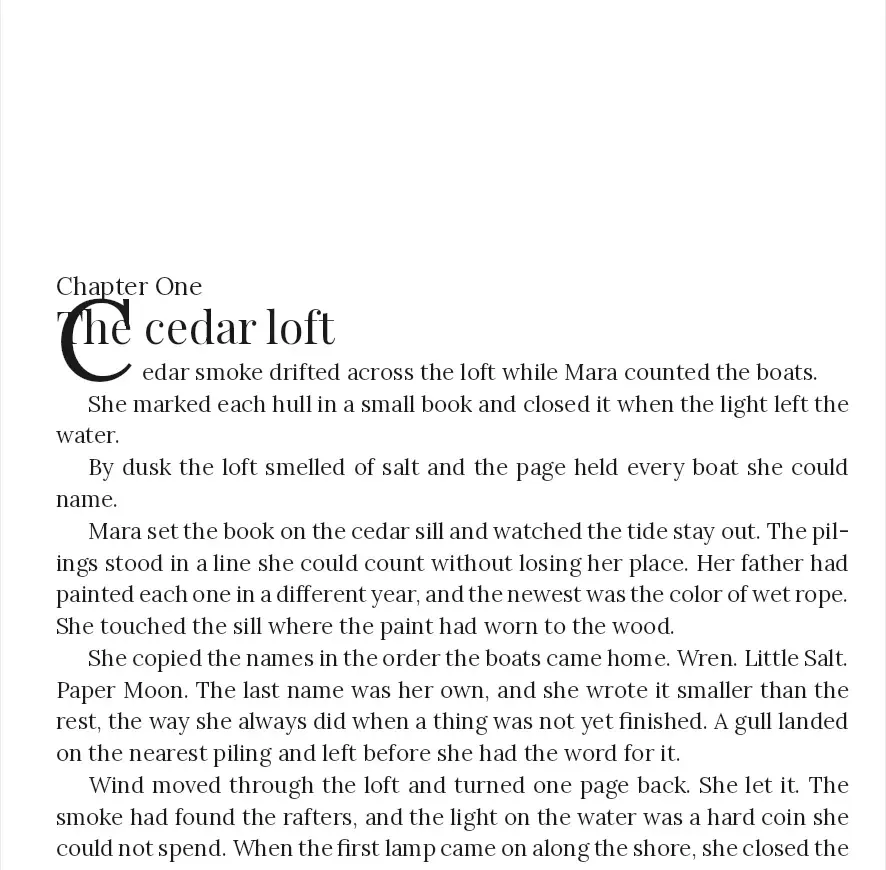
Click Use this style. The button changes to In use, and the card gains Applied. The chapter page restyles for the whole book. Serif Classic prints the words Chapter One over the title and a drop cap on the first paragraph. Classic, the look you started from, has neither.
Open Brand kit
At the top of the panel, the Brand kit card reads Colours, fonts and a logo shared with the cover. Click it. Under Colours, click Add colour. A swatch appears, with Remove beside it. Under Fonts, the Display and Body boxes say Family until you type a name. Under those boxes: Themes use bundled fonts only; an uploaded brand font is offered on covers and text.
See the theme change#
Drag the divider to compare. Classic is the starting look. Serif Classic adds the words Chapter One and a drop cap on the first paragraph.
Change or undo a theme#
Click another theme's card to replace the look, or click Undo to return to the previous one. To make your own, click Open builder under My themes. Set Theme name, then Body text and Chapter openers, and click Preview on my book. That applies the working copy to the manuscript and is one undo, on every plan. Save to My themes stays off until the account includes it, and the panel reads Saving custom themes is part of the pro finish. Publisher, Studio, and Founders' Lifetime include saving a theme, applying a locked card, and Update them.
Page size and margins are set separately. Read How to set trim size, bleed and margins.
Common questions
Which themes apply on a free account?
Classic, Serif Classic, and Modern Sans apply on every plan. Any other card can be previewed. Clicking a locked card, or Use this style on one, opens Unlock the full book toolkit and leaves the book unchanged. Publisher, Studio, and Founders' Lifetime include the rest of the gallery.
Does the brand kit change the chapter's fonts?
No. A theme keeps the fonts it was built with. Display and Body in the brand kit do not restyle the chapter. The panel says themes use bundled fonts only, and that an uploaded brand font is offered on covers and text.
Does changing a swatch recolor the pages?
No. Changing a swatch stores the new color with the book and leaves every page as it was. Update them appears only when a page still uses the old color. On a free account that button opens Unlock the full book toolkit. Leave them keeps the pages.
How do I save a theme I built?
Click Open builder under My themes. Preview on my book applies the working copy to the manuscript and is one undo, on every plan. Save to My themes needs Publisher, Studio, or Founders' Lifetime. Otherwise the button stays off and the panel says Saving custom themes is part of the pro finish.
Where do I set the margins?
Not in the theme. Margins sit with trim size and bleed, in the lesson How to set trim size, bleed and margins. A theme changes the type, the chapter opener, and the spacing inside the page you already sized.
Try it on your own book
Open a book in SmartKDP and follow the steps above. It takes about 6 minutes.