Text and typeLesson
How to save and reuse your own text styles
Select a title and click Save style in the toolbar. Name it, open Text, and click that name under My styles. The look moves onto the words you selected.
In short
Select the text and click Save style in the toolbar along the top of the canvas. Name it, click Save, then open Text and click that name under MY STYLES.
A cover often repeats one look: the title, the author, a series line. Matching them by hand means setting the font, the weight, and the color again on every line, and one line drifts. Save style keeps a look you already like, under a name you choose. My styles puts that look on any other text you select, in this book and the next, before you export.
Save a style#
Open Save style
Click the text whose look you want to keep. The toolbar appears along the top of the canvas. Click Save style. A panel opens, titled Save text style. It shows the words in the look you are saving, Name filled in from those words, Save, and Cancel. The line under the name reads: Saves the font, color, spacing and effects — not the size. Find it under Text › My styles.
Name it and save
Edit Name if you want a name you will recognize later. Click Save. A note at the lower corner says the name was saved to My styles. If that name is already on the shelf, the line warns you and the button reads Replace.
Open My styles
Click Text in the rail along the left edge. The Text panel opens. MY STYLES lists the name you saved. The line under that heading reads Looks you saved with “Save style”. If you do not see the heading, scroll the panel.
Apply the style
Click the words you want to change, so they are selected. Then click that name under MY STYLES. The font, the weight, and the color change to the saved look. The size stays the size those words already had.
The same look#
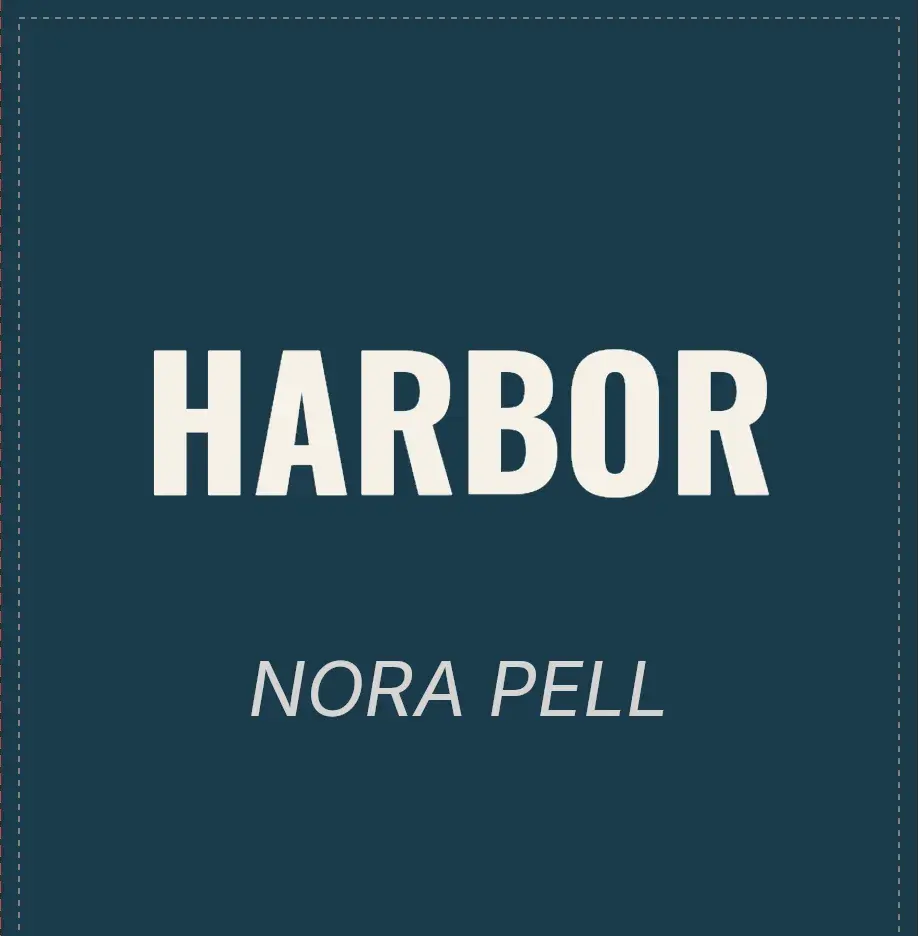
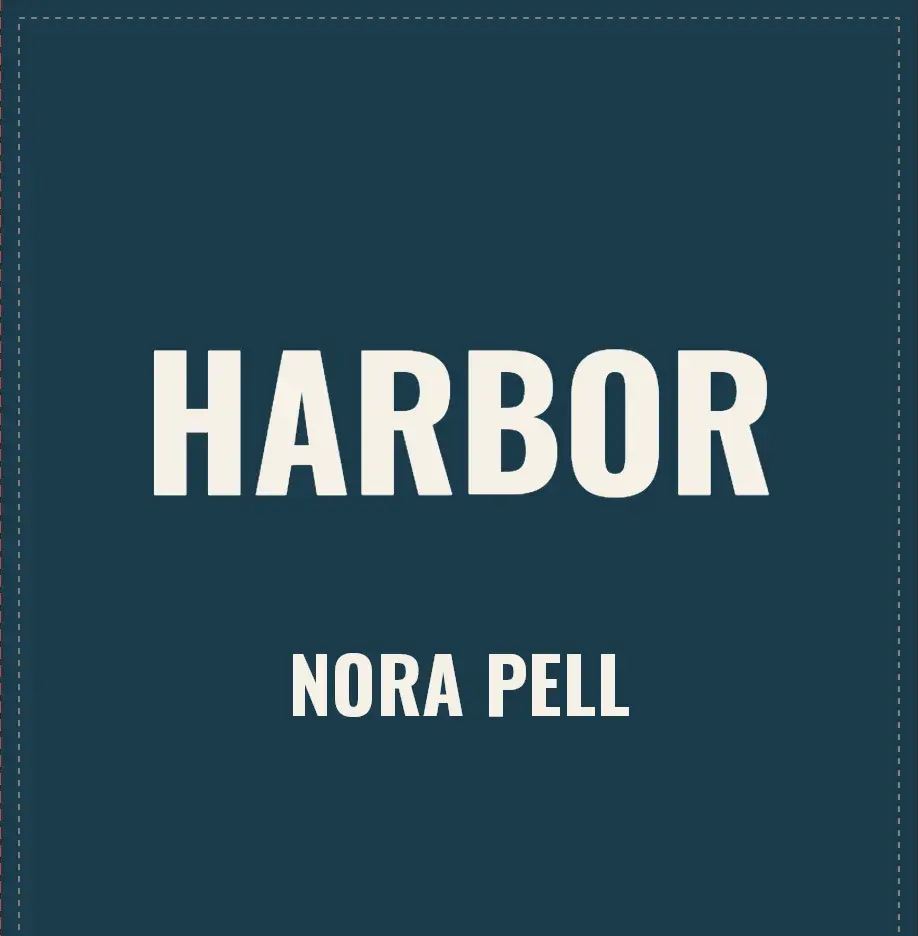
Drag the divider to compare. The words stay the words you typed. The font, the weight, and the color change. The size does not.
Remove a saved style#
Under MY STYLES, click the × beside the name. That control is named Remove, followed by the style name. The name leaves the list. Words you already changed keep their look.
For a shadow or an outline to include in the style, read How to add text effects to a book cover.
Common questions
Does a saved style change the type size?
No. The words keep the size they already have. The style sets the font, the bold or italic setting, the color, the spacing, and any effect you saved.
Can I reuse a style in another book?
Yes. My styles is saved on your account. Open Text in another project and the same name is listed there.
Does saving the same name twice keep both styles?
No. The panel says you already have a style by that name, and the button reads Replace. Saving replaces it. Text already on the page keeps its look.
Does a saved style keep a curve or an effect?
Yes. A curve or an effect on the text is part of the style. Applying it replaces the curve and the effects already on the words you selected.
Does saving a style need a paid plan?
No. Save style and My styles work on every plan.
Try it on your own book
Open a book in SmartKDP and follow the steps above. It takes about 5 minutes.