Page setup and layoutLesson
How to set trim size, bleed and margins
Open New project, set the trim size and bleed, then create the book. Turn on Margins to see the box KDP requires. You cannot type extra inches in this dialog.
On this page
In short
Click New project, set Trim Size under Book details, and choose Bleed or No Bleed under Interior & paper. Then click Create project, and turn on Margins from View in the bottom bar to see KDP's box.
KDP cuts the finished book to the trim you chose, and it refuses ink that sits inside the margin it requires. Bleed is the extra art past that cut, so a background that should reach the edge does not leave a white stripe. You set the trim and the bleed when you create the book. The margin is KDP's minimum for that page count, and the editor can draw the box before you place anything the cutter would remove.
Set the page#
Open New project
On your projects page, click New project. New Project opens. Under What are you making?, click the type of book, such as Novel / nonfiction.
The form fills in a starting size for that type. A novel starts as a paperback at 6" × 9" (most popular), on cream paper, with no bleed. A puzzle book starts larger. You change the size in the next step.
Choose the trim size
Under Book details, type a Project Name. Open Trim Size and pick the finished size, such as 5" × 8". Book Type is Paperback or Hardcover. Hardcover lists fewer sizes. Custom size… is only on a paperback, and it asks for Width (in) and Height (in).
Page Count is the count you are planning. The line under it names the range KDP allows for this trim, ink and paper. A manuscript's real count comes from the writing, and you can add or remove pages any time.
Turn bleed on or off
Open Interior & paper. The closed row already names the ink, the paper and the bleed. Choose Bleed when a background or a picture should run off the cut edge. Choose No Bleed for a book of text.
KDP's interior bleed is 0.125 inches on the top, the bottom and the outside edge, and none on the gutter, because that edge is bound rather than cut. Keep words out of the bleed. They are cut off.
Create the project
Under How do you want to start?, leave Open the editor selected. Start with a Book Concept and Start with Book Copilot are separate ways in, and each says when it uses AI credits. Click Create project.
The book opens at the trim and the bleed you set.
Show the margin box
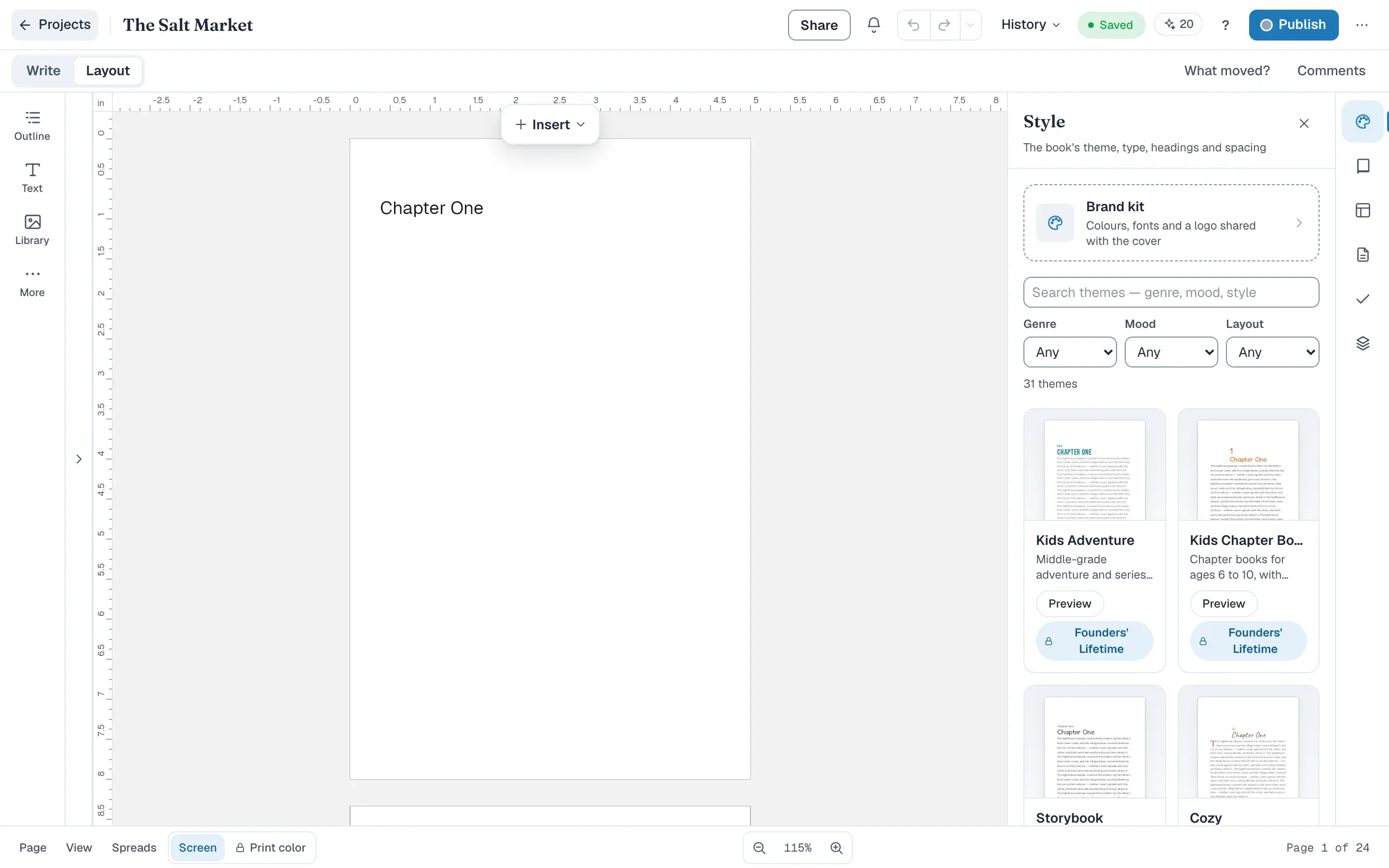
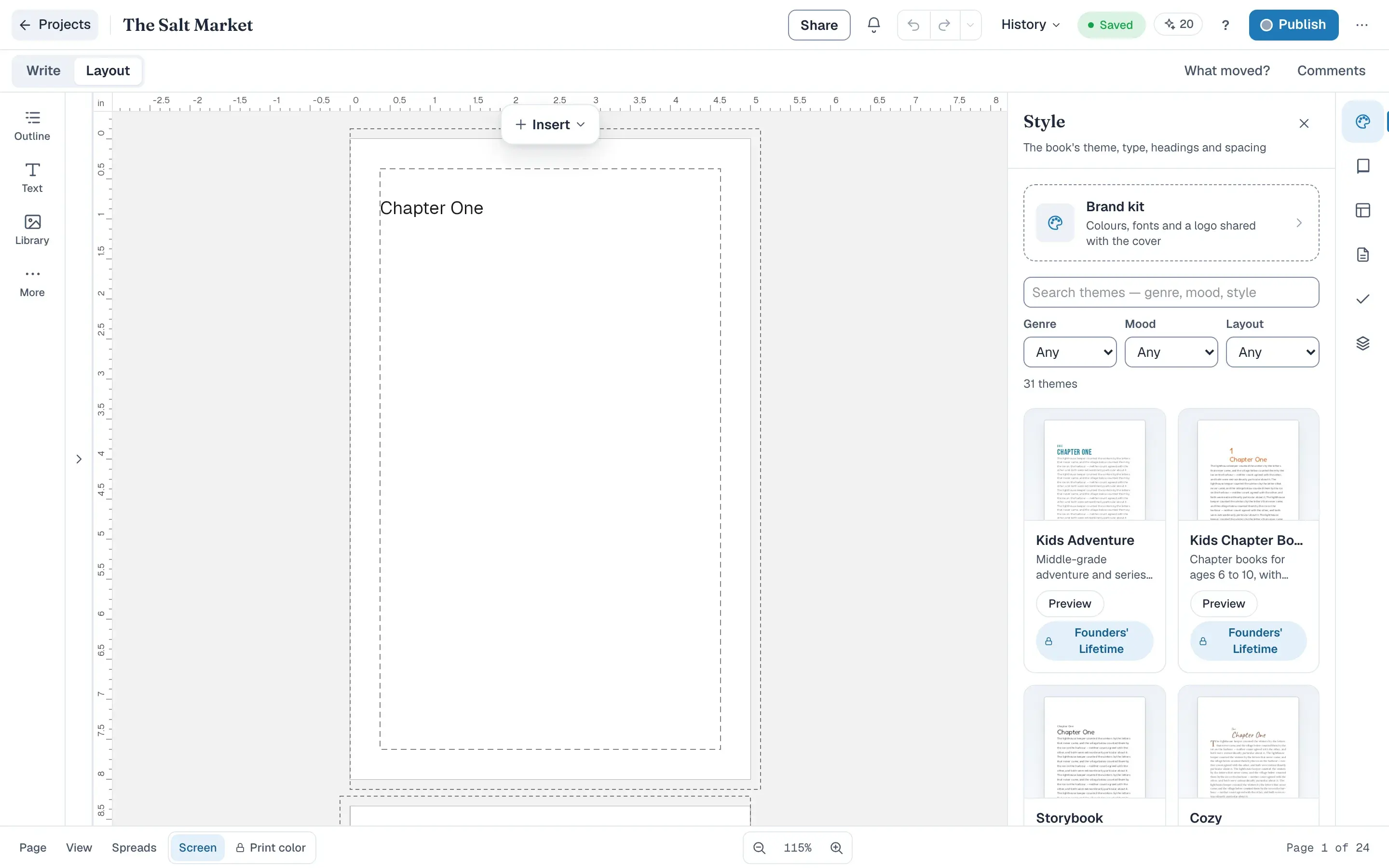
In the bar along the bottom of the editor, open View and turn on Margins. A dashed box appears on the page. That box is KDP's minimum for this page count and this bleed. It is not a margin you typed. There is no field for extra inches.
The page, with and without the box#
Drag the divider to compare. The dashed box is Margins. It shows where text and art must stay. It does not change the trim or the bleed.
Reading the form#
| In the panel | What it tells you |
|---|---|
| Trim Size | The finished width and height. Only sizes KDP prints for this binding are listed |
| Book Type | Paperback or Hardcover. Hardcover offers fewer trim sizes |
| Page Count | The count you are planning. The hint names the range KDP allows for this setup |
| Bleed | Art runs off the cut edge. Use it when a background should reach the edge of the page |
| No Bleed | The page stops at the trim. Use it for a book of text |
| Interior & paper | The closed row names the ink, the paper and the bleed already chosen |
The margin is not in this dialog. KDP's minimum depends on the page count and on whether the book has bleed, and it widens on the bound edge as the book gets longer. Margins in the editor draws that box. It does not let you replace it.
Start again#
Cancel leaves you on the projects page, with no book created. After Create project, this book keeps the trim and the bleed you chose. Create another book to start at a different size. Margins is only a view: open View and turn it off, and the page underneath is unchanged.
For how the size you pick changes what a copy costs, read How to Choose a KDP Trim Size.
Common questions
Can I change the trim after the book is created?
Not from the open book. Book home has Edit book details and Publish, and it does not list trim, bleed or margins. Set them in New project before you click Create project. To start over at another size, create another book.
Can I type my own margins?
Not yet. The book uses KDP's minimum for its page count and bleed. After the book opens, open View in the bar along the bottom and turn on Margins. A dashed box shows that minimum. There is no field for extra inches.
Does bleed make the finished book larger?
No. Trim size is the finished book, after the cut. Bleed lets art run past that cut so a background reaches the edge. KDP's interior bleed is 0.125 inches on the top, the bottom and the outside, and none on the gutter. Anything in the bleed is cut off.
Why is my trim size missing from the list?
The list is what KDP prints for the binding you chose. Hardcover offers fewer sizes than paperback. Custom size is paperback only. A combination KDP will not print is refused when you create the book.
Does this set the cover too?
No. A cover is its own project. New cover, next to New project, starts one. The cover's trim should match the book you set, and its page count should match the finished interior.
Try it on your own book
Open a book in SmartKDP and follow the steps above. It takes about 6 minutes.