Text and typeLesson
How to make your own AI font
Open AI font in the Text panel, describe the lettering, and click Make the alphabet. Pick one set of capitals, then save the font. The words stay editable.
In short
In the Text panel, under DECORATIVE FONTS, click AI font. Describe the lettering, click Make the alphabet, pick the capitals, and click Save font.
A title sometimes wants letters that no font on the machine has: chalk, wood, a hand-drawn line. An AI font draws a whole alphabet in one style, and the words stay words you can edit. You pick the capitals before the rest of the alphabet is drawn, and you are charged only for the sheets that pass the check, before you commit the cover.
AI font comes with the Creator, Publisher and Studio plans, and it spends AI credits. On the Free plan the dialog still opens, and Make the alphabet tells you these tools are on paid plans. A Founders' Lifetime plan does not include it.
Make an alphabet#
Open AI font
Click Text in the rail along the left edge. Scroll to DECORATIVE FONTS. Click AI font. The dialog says the text stays editable letter by letter.
Describe the lettering
In Describe the lettering, type the look you want. A style is optional. The chips are chalk, neon, balloon, wood, and floral. Leave Standard selected unless you want Max. Each one shows its credits. The line under Make the alphabet says a full font can cost up to 65 credits at Standard: 13 credits a sheet, for three takes on the capitals and then one sheet each for the lowercase and the numbers.
Make the alphabet
Click Make the alphabet. The first run draws three takes on the capitals. You are charged only for sheets that pass the check. To stop a sheet that is still running, click Cancel — you'll be refunded.
Pick the capitals
Click the set you want. The buttons are named Use capitals 1, Use capitals 2, and Use capitals 3. The lowercase, then the numbers and punctuation, follow in that style. If a sheet does not come out, the note names that sheet and says you were not charged. Click Try that sheet again, or Pick different capitals to go back to your other takes.
Save the font
Name this font is filled in from your description. Edit it if you want a shorter name. Click Save font. The font is listed under DECORATIVE FONTS.
Plain type and the font#
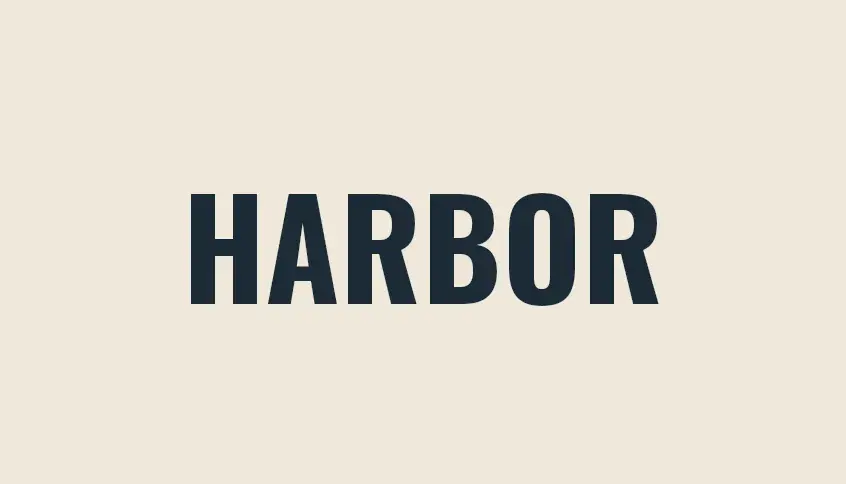
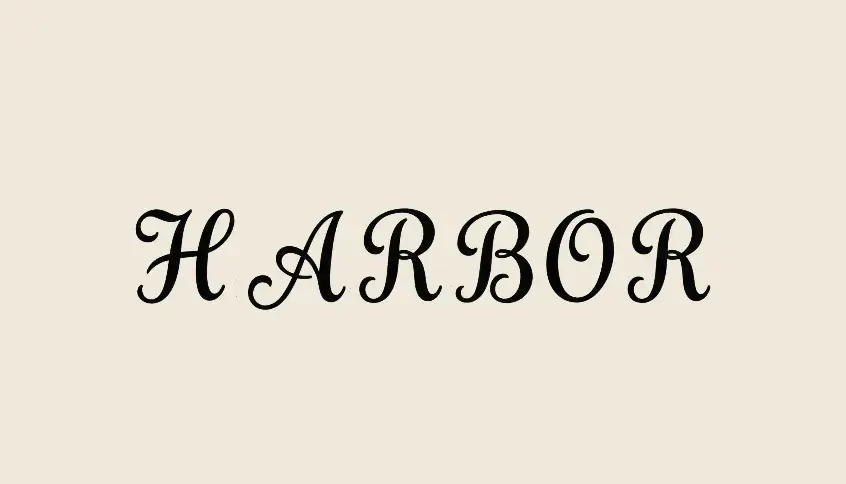
Drag the divider to compare. The word is the same. Only the way the letters are drawn changes.
Use the font#
Under DECORATIVE FONTS, click the font you saved. That control is named Apply, followed by the font name. To remove the font from the list, click the × beside it. That control is named Remove, followed by the font name. Words you already changed keep their look.
Curve text is not available on an AI font. For a curve on a normal font, read How to curve text on a book cover.
Common questions
Do the letters stay editable after I save the font?
Yes. The words stay words you can change. When you edit them, you type in the AI font itself.
Does the Free plan include making an AI font?
No. On the Free plan, Make the alphabet opens a note that these tools are on paid plans. The alphabet comes with Creator, Publisher and Studio. A Founders' Lifetime plan does not include it, and a paid plan still spends AI credits.
Am I charged when a sheet fails the check?
No. You are charged only for sheets that pass. A sheet that is still running can be stopped, and that button says you will be refunded.
Can I curve an AI font?
No. Curve text is switched off on an AI font, and its name reads Curve text — not available on AI fonts.
Can I use a saved font in another book?
Yes. The font is saved on your account. Open Text in another project and it is listed under Decorative fonts.
Try it on your own book
Open a book in SmartKDP and follow the steps above. It takes about 6 minutes.