ImagesLesson
How to generate a coloring page or theme pack
Describe a scene in Generate, under Elements, and place a coloring page on the page in front of you. A theme pack makes one page for each subject you list.
On this page
In short
In the editor, open Library, then Elements, Generate and Coloring page. Describe the scene, choose a Detail level, click Make a coloring page, then click Place to put it on the page.
A coloring book needs a drawing on each page that a reader can color inside. A photo pasted onto the page prints as a gray picture, and there are no lines to stay inside. Describing a scene here makes a line drawing and puts it on the page you are looking at, inside the margins, before you order a proof copy.
Coloring page and Theme pack come with the Creator, Publisher and Studio plans and spend credits. Founders' Lifetime does not include them. On the Free plan, Generate says these tools are on paid plans.
Make a coloring page#
Open Elements
Open your book. In the tool rail on the left, click Library, then the Elements tab. The panel opens beside the page.
Choose Coloring page
In that panel, click Generate, then Coloring page. The form asks you to describe one page. Illustration and Trace my sketch are the other choices in the same row; leave them for a different job.
Make the page
Under Describe the page, write an animal, a place, or an object. Leave titles, signs, and words out of the description. Detail level opens on Kid — balanced. Choose Toddler — bold, few lines for thicker lines and fewer of them, or Detailed — fine lines for a busier drawing, then click Make a coloring page.
The chip beside the button shows the cost. The line under the button says you are charged only for a result that passes the quality check. When a page comes back, Place sits under the drawing.
Place it on the page
Click Place. The drawing lands on the page you are looking at, inside the margins. It does not add a page, and it does not move you to another page. A second Place on this same page adds a second drawing on top of the first.
The page, before and after#
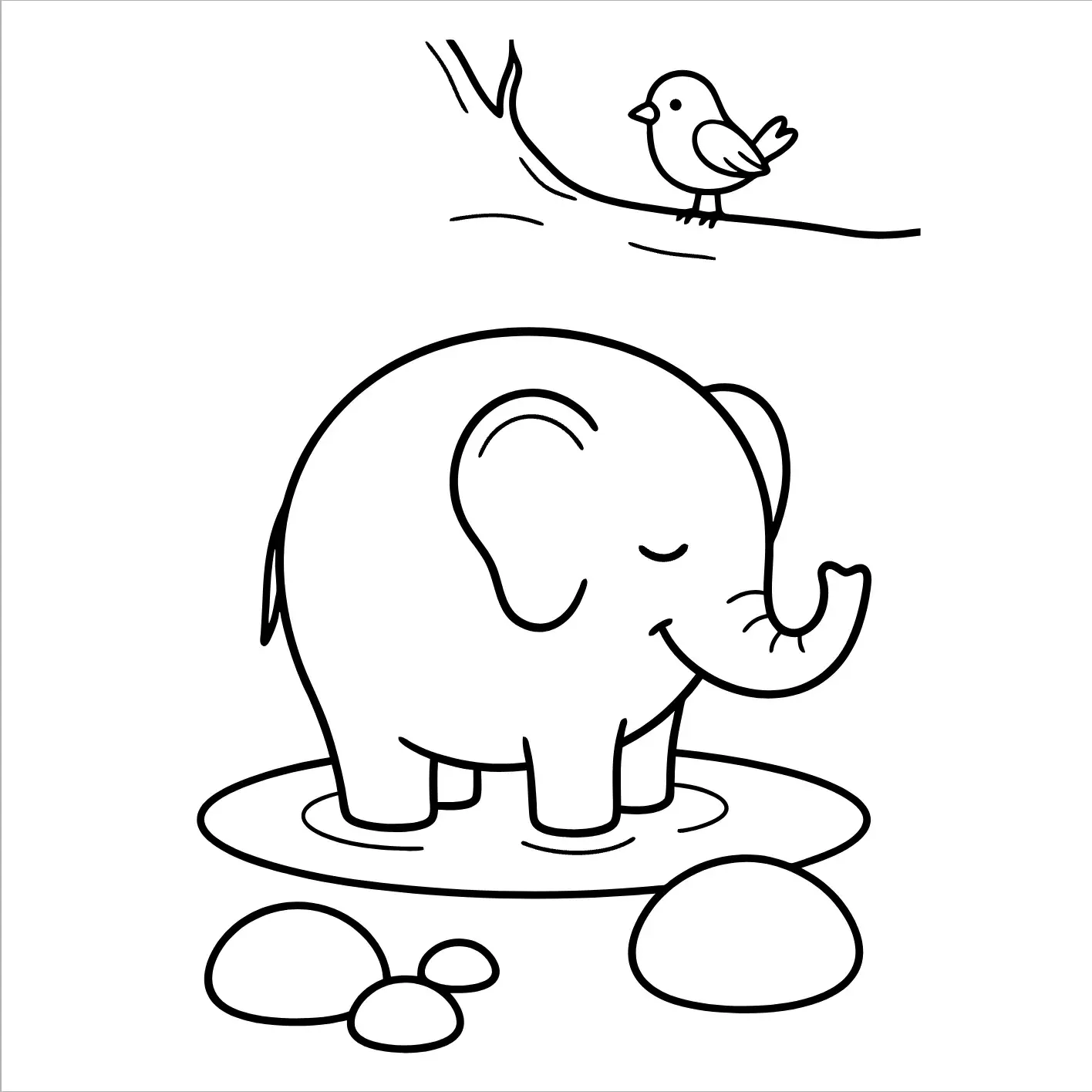
Drag the divider to compare. The drawing sits inside the margins, and the rest of that page stays empty.

Reading the Generate tab#
| In the panel | What it tells you |
|---|---|
| Detail level | How heavy the lines are. |
| Toddler — bold, few lines | Thick lines, and fewer of them. A good fit for a young reader. |
| Kid — balanced | The middle setting. The menu opens on this. |
| Detailed — fine lines | More lines, and thinner ones. |
| Standard | The usual quality. The chip shows what this choice costs. |
| Max | A finer result, when the panel offers it. It costs more than Standard. |
| Subjects — one per line (2–6) | The list Theme pack uses. One coloring page is made for each line. |
The line under Make a coloring page names the cost and says you are charged only for a result that passes the quality check. If nothing comes back, the panel says you weren't charged. Theme pack uses the same detail choices. The line under its list says each subject becomes its own coloring page, in the same style. You need at least 2 subjects and at most 6, and each line stays under 60 characters.
Take the drawing off#
Click Undo, or press ⌘Z, and that one drawing leaves the page. The other pages stay as they were. Click Close panel, or click Browse, and the result hides. Open Generate again and Place is still there, until you place the drawing, click Try another, switch to Illustration, Theme pack, or Trace my sketch, or click Make a coloring page again. Try another clears the result and does not spend credits. More like this keeps the description and spends credits. So does Make a coloring page.
For a set of pages, switch to Theme pack, list the subjects, and click Add page before each Place after the first, so each drawing gets a page of its own.
When the page is the one you want to publish, answer KDP's AI-generated content question before you upload the book.
Common questions
What does a coloring page cost?
The chip beside Make a coloring page shows the cost before you click, and you are charged only when a page comes back. It comes with the Creator, Publisher and Studio plans. The Free plan and Founders' Lifetime do not include it.
Can I put a title or words on the coloring page?
No. The page is a line drawing with no writing. If your description asks for a title, a sign, or words, the panel usually says nothing came back and you were not charged.
How do I make several coloring pages on one theme?
Open Theme pack, write a theme, and list 2 to 6 subjects, one per line. The button names the count, such as Make 3 pages. Each result has its own Place button. Click Add page before you place the next one, so the drawings do not stack on the same page.
Does More like this cost credits again?
Yes. More like this runs the same description again and spends credits. Try another clears the result and does not spend credits. Closing the panel only hides it. Open Generate again and Place is still there, until you place the drawing, click Try another, or leave Coloring page.
Does placing the drawing change my other pages?
No. Place puts the drawing on the page you are looking at and leaves every other page alone. Undo, or ⌘Z, takes that one drawing off.
Try it on your own book
Open a book in SmartKDP and follow the steps above. It takes about 6 minutes.