Puzzle booksWalkthrough
How to generate a puzzle set and place it across pages
Make a whole set of puzzles in one run, lay them out one, two or four to a page, and add numbered answer keys after them, all from the Puzzles panel.
On this page
In short
In the tool rail, click Puzzles and open a puzzle type such as Sudoku. Set Puzzle count, Puzzles per page and Include solutions, then click Generate & Place: the whole set lands on your pages, numbered, with its answer keys after it.
A puzzle book is fifty or a hundred puzzles, each numbered, each with an answer a reader can find. Laid out by hand, that is where books go wrong: an answer printed under the wrong number, two puzzles drawn over each other, a key page missing. The Puzzles panel makes the whole set in one run, numbers the puzzles and their answers to match, and spreads them over the pages you choose. You check it on your own pages, before a numbering slip reaches a printed proof or a review.
Generate your set#
Open a puzzle type
Open your puzzle book on the page where the puzzles should start. In the tool rail, click Puzzles. On Catalog, search for sudoku and click the Sudoku card.
Its settings open in the panel: the puzzle itself under Puzzle, then Solutions and Appearance.
Choose the board and difficulty
Under Puzzle, Board size sets the grid and Difficulty how hard each puzzle is, from Very Easy to Extreme. Here the board stays at 9×9 and Difficulty changes to Easy.
Every puzzle in the set uses these settings. For a book that gets harder as it goes, make one set per difficulty.
Set how many puzzles
Type the number into Puzzle count. Each puzzle counts as one of your plan's monthly puzzle generations, and the line above Generate & Place shows how many you have left. The Free plan includes 3 a month; paid plans include 200 or more.
Choose puzzles per page
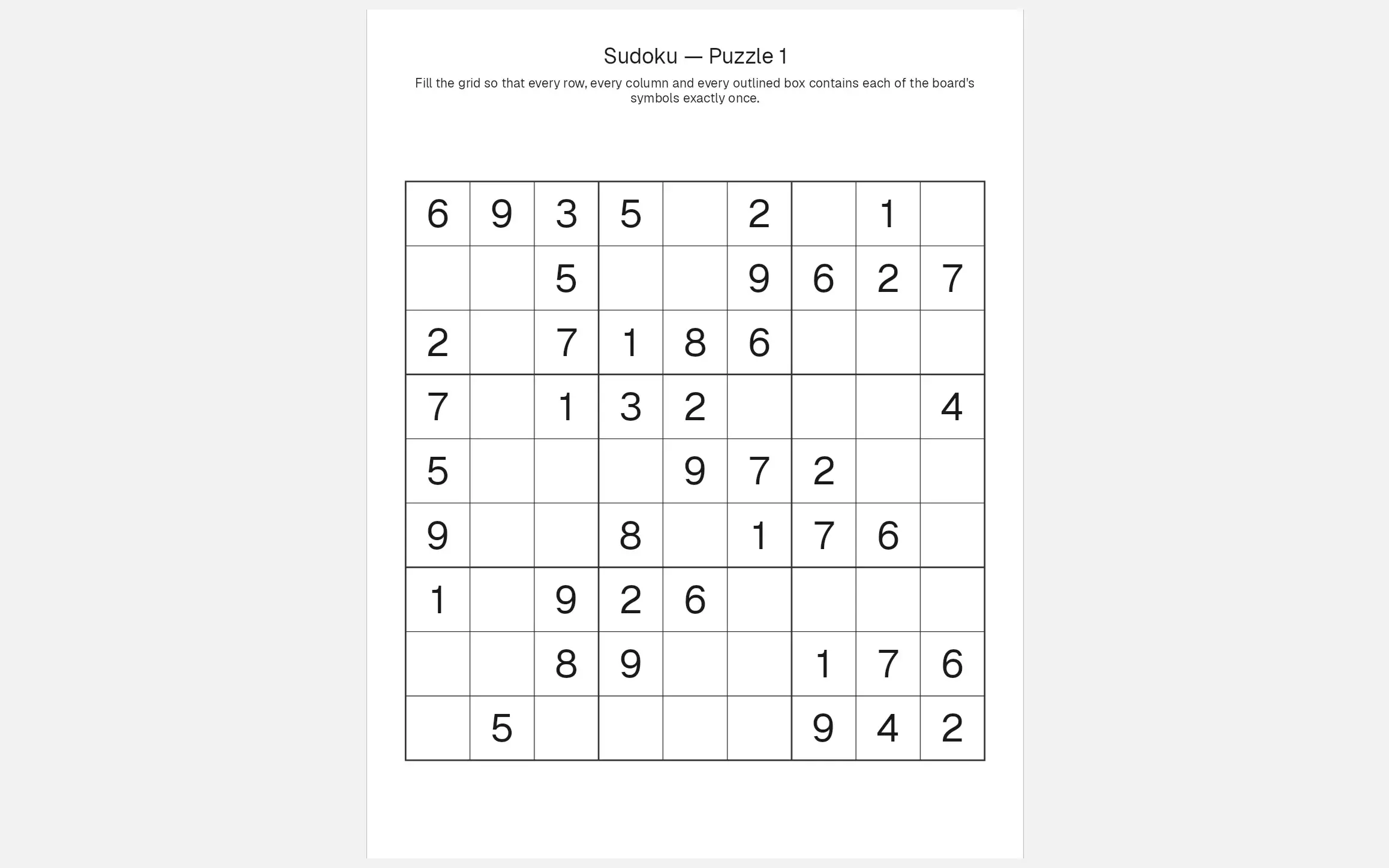
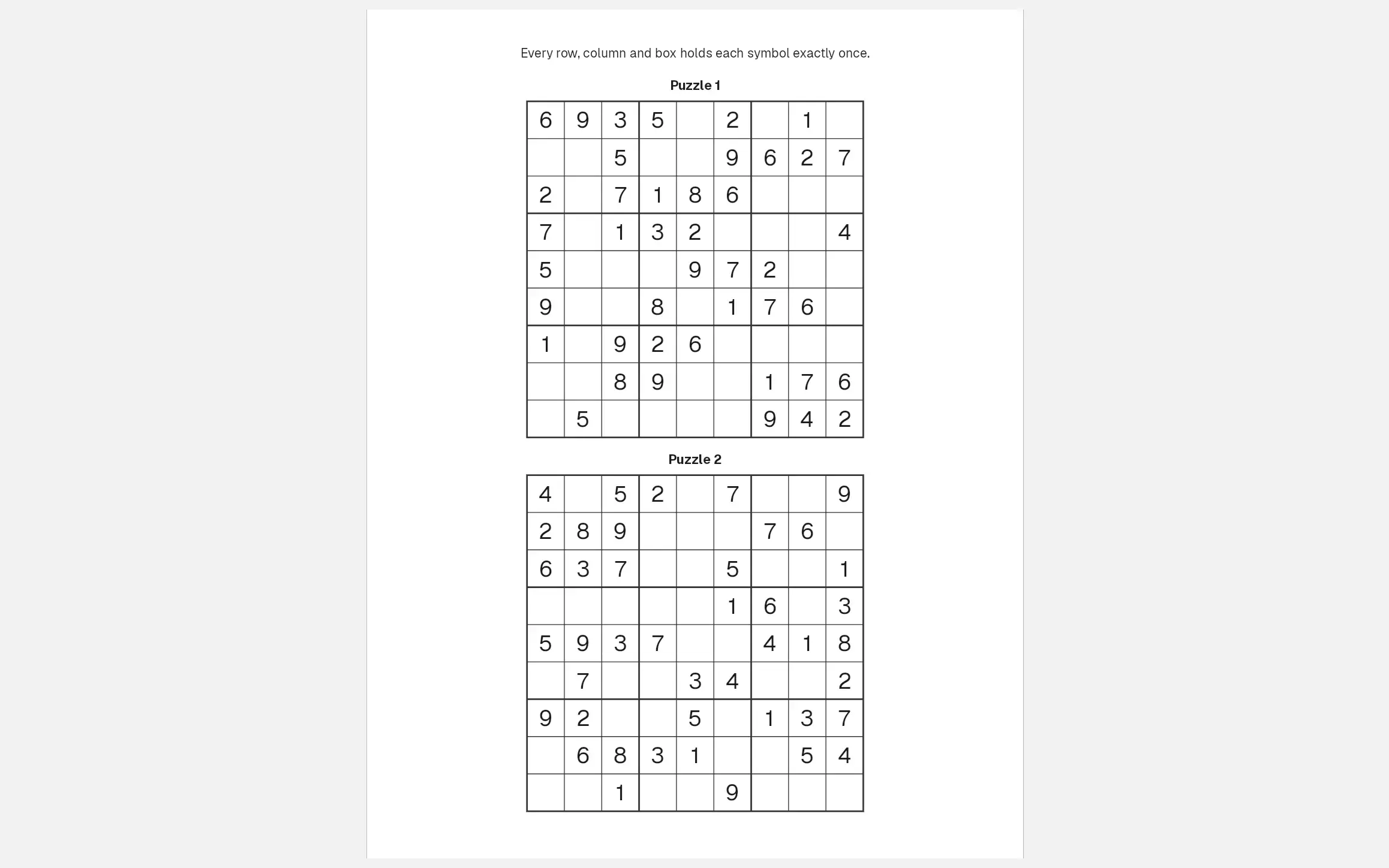
Puzzles per page offers 1 — full page, 2 per page and 4 per page. More to a page means smaller grids and fewer pages: twelve puzzles at 2 per page fill six pages.
If the page is too small for the number you pick, the set is placed with fewer to a page and the panel says so.
Set up the answer keys
Under Solutions, Include solutions is on to start, so answer-key pages follow the puzzles. Solutions per page sets how many answers share a page: at 6 per page, twelve answers take two pages. Each answer carries its puzzle's number.
Generate and place the set
Check Start page: it is the page you had open, or, if that page already holds a puzzle or a page template, the first free page. Click Generate & Place.
The puzzles are made and laid out from that page on, with the answer keys right after the last puzzle. The line under the button says what it did, here Placed 12 puzzles on 6 pages · 2 solution pages. If the book runs out of pages, the set adds the pages it needs.
One, two or four to a page#
Drag the divider to compare. The same puzzles on the same page: one to a page prints the largest grid, four to a page fits the most on each sheet.
Reading the Sudoku settings#
| In the panel | What it tells you |
|---|---|
| Puzzle count | How many puzzles the set makes. Each one is a puzzle generation |
| Variation number | Empty makes new puzzles every run. The same number makes the same puzzles again |
| Puzzles per page | How many puzzles share a page. Two or four to a page use a compact layout with smaller grids |
| Include solutions | Adds answer-key pages after the puzzle pages |
| Solutions per page | How many answers share an answer-key page |
| Start page | The page the first puzzle goes on |
| puzzle generations left this month | What your plan has left. A set of twelve uses twelve |
| Save to library | Makes the set without placing it. It waits under Saved sets |
| In this book | Above the catalog: every placed set, its pages and an Edit button |
The settings under Appearance, such as cell size, fonts and colors, change only how the puzzles look. Changing them on a placed set redraws it straight away and costs nothing.
Change or remove the set#
Click any puzzle in the set and choose Edit puzzle in the bar above it, or click Edit beside the set under In this book. Change a setting and click Apply changes. A new layout re-places the same puzzles; a new Difficulty or Puzzle count makes new ones. Other puzzles in the book are untouched.
Right after placing, ⌘Z takes the whole set off. Later, delete it from Saved sets, which takes its placed puzzles with it.
For the trim size, page count and number of puzzles a Sudoku book needs, read How to make a Sudoku book for KDP.
Common questions
How many puzzles can I generate?
It depends on your plan. Each puzzle in a set counts as one puzzle generation: the Free plan includes 3 a month, Creator 200, Publisher 1,000 and Studio 3,000. Re-laying out a set you already placed costs nothing.
Which puzzle types work on the Free plan?
Six: Sudoku, Word Search, Crossword, Cryptogram, Word Snake and Word Scramble. Creator and the plans above it open every type in the catalog, and most types have the same placement settings as Sudoku.
Will I get the same puzzles if I generate the set again?
Only if you use the same Variation number. Leave it empty and every run makes new puzzles. Once a set is placed, the field shows the number that set used, so you can note it down and make the same puzzles again later.
Can I change the difficulty after the puzzles are placed?
Yes. Click a puzzle, choose Edit puzzle, change Difficulty and click Apply changes. The set gets new puzzles on the same pages, and they count toward your monthly puzzle generations.
Can I make puzzles without putting them in the book yet?
Yes. Click Save to library instead of Generate & Place. The set waits under Saved sets in the Puzzles panel, and you can place its puzzles on any page later, in any order.
Try it on your own book
Open a book in SmartKDP and follow the steps above. It takes about 8 minutes.