Exporting and publishingLesson
How to preview a book before you publish it
See facing pages at their printed size from Publish, then check the same book on the Kindle tab before you order a proof copy of the paperback interior.
On this page
In short
Open Publish at the top of the editor, then choose Preview as a book… under Tools. Paperback spread shows page 1 standing alone on the right, Next → turns to the facing pages, and Kindle shows the eBook at a Kindle page size.
A paperback is read two pages at a time, and the first page of a bound book sits alone on the right. The editor shows one page at a time, so a chapter that starts on the wrong side, or a line that falls into the fold, stays hidden until a printed copy. Preview as a book… draws those facing pages at their printed size and marks the fold and the inside margins on top of them. The Kindle tab is a separate check of the eBook: it shows your own book at a Kindle page size, and a reading system may set the type differently, so you can catch a wrong chapter order before you pay for a proof.
Preview the book#
Open the book preview
At the top right of the editor, click Publish. In Publish, scroll to Tools and click Preview as a book….
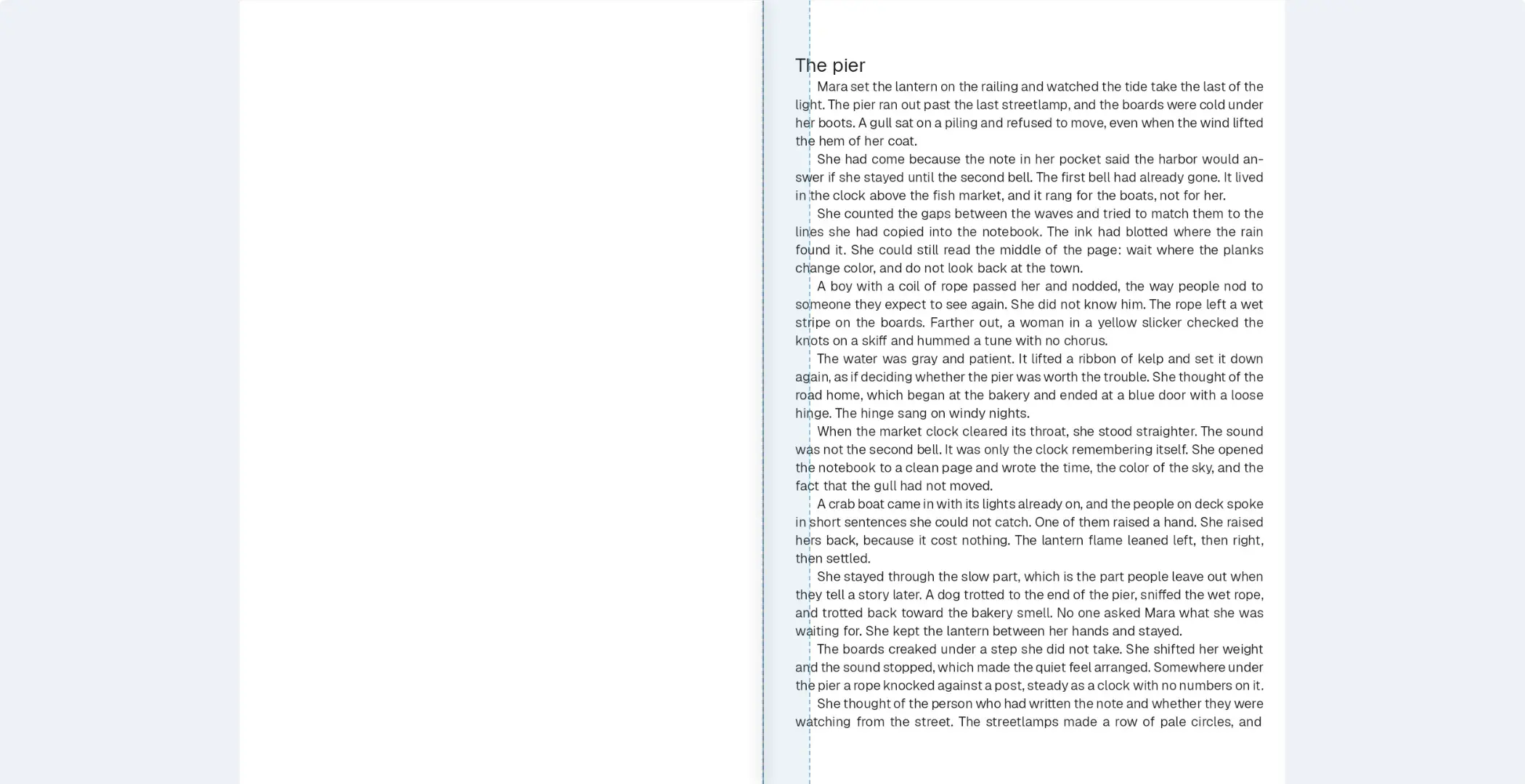
The dialog opens on your book's name. Under the title it reads How this book reads in print and on a Kindle. Nothing here changes the document. Two tabs sit under that line: Paperback spread and Kindle. The dialog opens on Paperback spread. The picture is page 1, standing on the right, and the status line names that page and the book's page count. ← Previous is unavailable here, because there is no spread before the first page.
On a book that has no Write control, the same corner reads Download, and Preview as a book… is in that menu. The dialog that opens is the same one.
Turn to facing pages
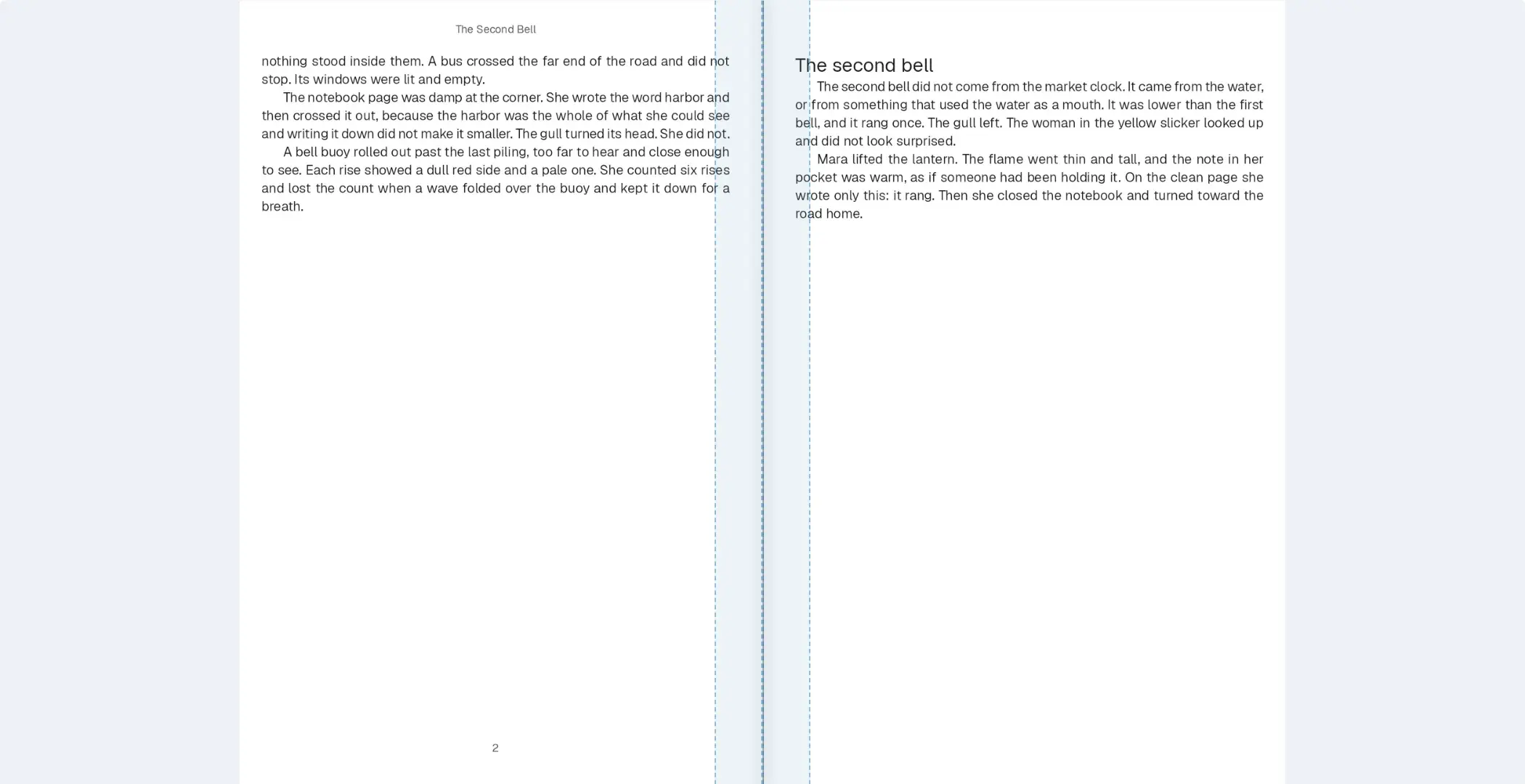
Click Next →. The status line names both pages of the spread and the book's page count, and the picture shows them side by side at their printed size. A line between them marks the gutter, where the paper folds, and a band on each side of that line marks the inside margin.
The note under the picture reads Facing pages at their printed size, with the gutter and the inside margins marked. A bound book opens on a right-hand page, so page 1 stands alone. A printed spread has no gap between the pages. The line and the bands are marks on this preview, drawn over the pages, so you can see where the fold and the inside margins fall. Click Next → again for the next pair, or ← Previous to come back.
Open the Kindle tab
Click Kindle. The frame shows the eBook at a Kindle page size, opened on the first chapter of the manuscript. Chapter lists the chapters, and the line beside it counts the chapters and the words.
The note under the frame reads This is your eBook’s own markup at a Kindle’s page size — not a simulation of Kindle’s layout engine. A reading system substitutes its own type, so the words and the structure are the thing to check here, never the face. Read the words and the chapter order. Do not correct a typeface or a line break from this tab. The printed pages stay on Paperback spread.
Choose another chapter
Open Chapter and choose the chapter you want to read. The frame replaces the open chapter with that one, and the title at the top of the page changes with it.
Paperback spread is unchanged by this. It still shows the printed pages, in page order. Use Chapter only to move through the eBook.
Page 1 and the facing pages#
Drag the divider to compare. Page 1 stands alone on the right. The next spread is the first pair of pages that meet at the fold.
Reading the preview#
| In the preview | What it tells you |
|---|---|
| Paperback spread | The printed pages at their printed size. Page 1 stands alone on the right. |
| Next → | The next pair of printed pages. ← Previous goes back one pair. |
| Kindle | Your own eBook at a Kindle page size. Check the words and the structure, not the type. |
| Chapter | Which chapter the Kindle frame is showing. Choosing one opens that chapter. |
The status line on Paperback spread counts pages in the paperback. The Kindle frame does not use that count. It shows the chapter you picked, and a reading system may break the lines differently.
Close the preview#
Click Close at the top right of the dialog. The book is unchanged, on both tabs. When the pages read the way you want, continue with How to export a print-ready PDF.
Common questions
Does looking at the preview change my book?
No. The dialog says nothing here changes the document. Closing it leaves the manuscript exactly as it was.
Will the Kindle tab match a Kindle page for page?
No. It shows your own eBook at a Kindle page size, and the note under the frame says a reading system substitutes its own type. Check the words and the chapter order there, not the typeface or the line breaks.
Why does the first page stand by itself?
A bound book opens on a right-hand page, so page 1 has nothing facing it. The next spread shows two pages side by side.
Does this preview need a paid plan?
No. The paperback spread and the Kindle tab are included on every plan. Neither one edits the book.
Is this the same thing as the Spreads button?
No. Spreads, in the bar along the bottom of the editor, opens Print spreads while you edit. Preview as a book, under Tools in Publish, is the facing-page view that also has the Kindle tab.
Try it on your own book
Open a book in SmartKDP and follow the steps above. It takes about 5 minutes.