Why KDP Rejected Your Cover
By SmartKDP
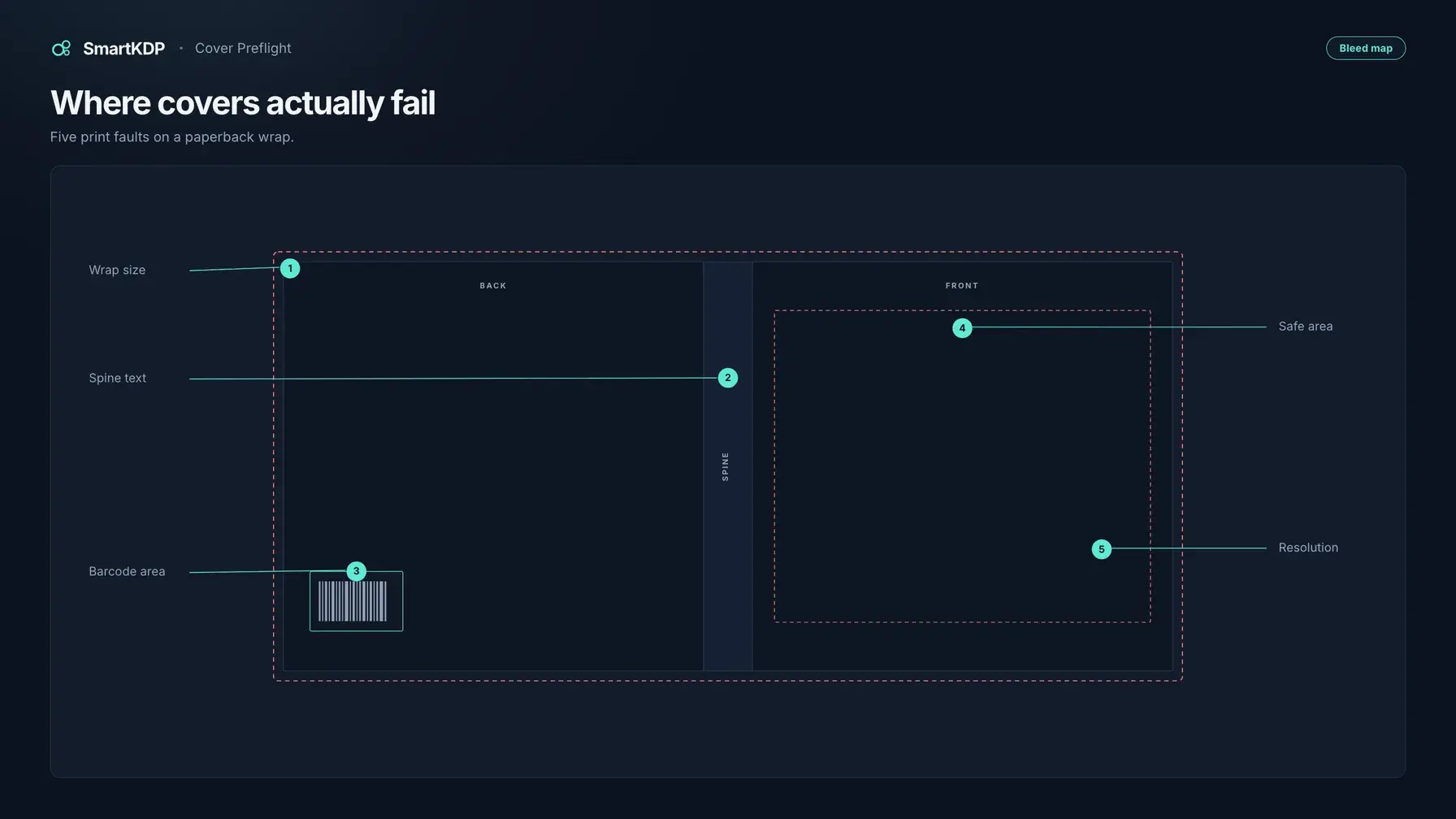
KDP rejected the cover, or Print Previewer blocked it, and the note named a size, a barcode, a spine, or nothing you can act on. You do not need a new design. You need the cause, in the order the file actually fails, and a check that runs before the next upload.
Work this list top to bottom. Each item maps to a named preflight check. To run those checks on a live wrap before you upload, use Cover Designer.
Not affiliated with Amazon. Amazon, Kindle, KDP, and related marks are trademarks of Amazon.com, Inc. or its affiliates. SmartKDP is not affiliated with, endorsed by, or sponsored by Amazon. Rules paraphrase public KDP help. Confirm dimensions and file rules against your KDP account, Create a Paperback Cover, and KDP’s cover calculator before you upload.
The ordering mistake that causes most of them
Do not design the cover until page count, trim size, binding, ink, and paper are final.
A KDP print cover is one full-wrap PDF: back, spine, and front as a single image. Spine width is how many pages you print times how thick each page is:
spine width = page count × per-page thickness
cover width  = (2 × trim width) + spine width + (2 × bleed)
cover height = trim height + (2 × bleed)
Bleed is 0.125 in (3.2 mm) on the outer edges. Change cream to white, drop filler pages, switch ink, or re-export the interior after you “finished” the cover, and the wrap width moves. A file built on a draft Word count will not match the PDF KDP manufactures.
Lock the interior, then size the wrap — the same ordering as printing cost. Process: How to Design a KDP Book Cover Yourself. Inches: How to Calculate KDP Cover Size. Do not stretch a paperback wrap onto hardcover. Use the printed PDF page count, including blanks — not Word’s estimate.
Diagnostic checklist
Size first: KDP computes an expected wrap from the interior you uploaded. Placement next. File construction last. Each entry is symptom → cause → fix → catch before upload. Bold labels are Cover Designer’s preflight names.
1. Wrap dimensions do not match trim + spine + bleed
Symptom. Wrong size, white edge, letterboxing, or spine art off the fold.
Cause. The canvas is not the wrap for this trim, page count, paper, and ink, with bleed. Front-only square, rounded spine, paperback inches on hardcover, or white margin around the file. Live thickness values belong in a calculator — KDP revises the table.
Fix. Re-export the interior. Recalculate full cover with bleed. Rebuild to that canvas. Submit a single-page PDF with no crop marks. Confirm in your KDP account.
Catch it before upload. Cover size & print boxes. One wrap page from the create wizard; guides mark bleed, trim, and folds. A mismatch names Whole cover.
2. Spine text on a thin book, or type too close to the folds
Symptom. Spine-text rejection, or title/author running onto a cover face.
Cause. KDP’s paperback cover help: they only print spine text on books with more than 79 pages. That makes the threshold 80: at 79 pages or fewer, spine text is not printed, so a cover carrying it will not come out the way you designed it. Treat 80+ as the floor. On a legal spine, type still needs at least 0.0625 in (1.6 mm) clear of each fold. An 80-page spine has little usable width after both clearances.
Fix. Count pages on the interior PDF. Under the threshold, delete spine text. Above it, recenter until both folds are clear. Avoid a hard color edge sitting exactly on the fold.
Catch it before upload. Spine text, on the Spine panel. Spine-text auto-fit is blocked below the threshold, with the reason shown.
3. Something in the barcode area
Symptom. Barcode mention, a white box covering art after print, or a barcode that failed validation.
Cause. If you do not place a barcode, KDP adds one on the back. Barcode help: covers with images or text in that location will be rejected. If you place your own, suggested size is 2 in × 1.2 in, at least 0.25 in from spine and trim, on white. Hardcover insets differ — see hardcover cover help.
Fix. Leave the keep-out empty if Amazon will place the barcode. Move blurb, badges, and QR codes out. If your barcode failed scanning, remove it and let KDP place one.
Catch it before upload. Barcode area. Names Back cover and the object in the zone. The canvas guide is that 2 in × 1.2 in keep-out with a 0.25 in margin.
4. Critical content outside the safe area on a panel
Symptom. Title or blurb cropped in preview, on the hinge, or fine on screen and dead in a proof.
Cause. KDP: front and back text at least 0.125 in (3.2 mm) inside the trim, and not into the spine. Backgrounds must extend into the 0.125 in bleed. Thin borders are discouraged; if you use one, KDP’s guidance is at least 0.25 in inside the trim line.
Fix. Pull title, author, and blurb into the panel. Extend backgrounds past trim. Do not put the only readable title in the bleed.
Catch it before upload. Safe area. Names Front cover or Back cover and the object that crossed the inset. Spine type is Spine text, not this check.
5. The cover was built against a page count the book no longer has
Symptom. The wrap passed once. You then added a contents page, cut an appendix, switched paper, or re-exported the interior. The new upload fails size or spine. The art looks unchanged.
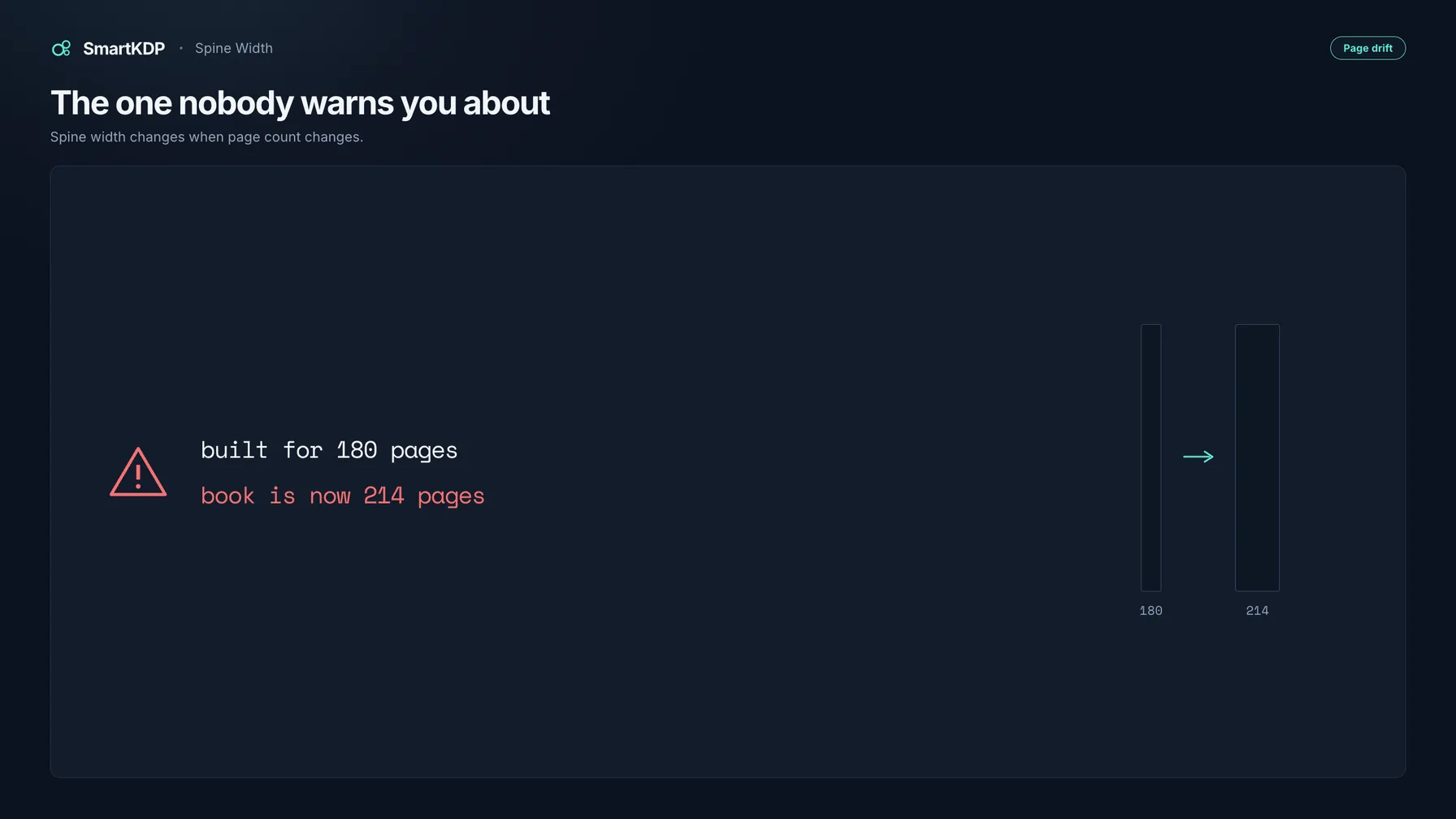
Cause. Spec drift. The cover’s saved size is a snapshot of an older book. The file is internally consistent and still wrong for what KDP will print. This is the failure nobody warns you about.
Fix. Do not nudge the spine by a few pixels. Recompute the wrap from the current interior PDF page count, paper, and ink, then reflow spine type.
Catch it before upload. Cover size is out of date. A banner fires when the linked interior’s live page count no longer matches the cover’s saved count, or when KDP’s cover figures have since been updated. Nothing is recomputed automatically — you may have proof-copied this exact file. The banner offers the update; you take it.
6. Low-resolution art
Symptom. Soft type, pixelated photos, or a “low resolution” note. A 72 DPI web download stretched across the wrap.
Cause. KDP: images placed at 100%, flattened, minimum 300 DPI at the size they appear. A file tagged “300 DPI” that you then scale up is not 300 DPI.
Fix. Replace the asset with enough pixels at final size. Do not upscale a thumbnail. File construction: KDP Cover File Requirements.
Catch it before upload. Image resolution — the 300 DPI floor, before you download a PDF.
7. Fonts not embedded or not licensed for embedding
Symptom. Looked correct on your machine. Preview substitutes a face, drops glyphs, or fails font checks.
Cause. KDP: embed your fonts. Manuscript guidance prefers fully embedded. A face you are not licensed to embed cannot legally go in the print PDF. Locked or encrypted PDFs fail review.
Fix. Embed every face on the wrap. Swap any font whose license forbids embedding. Re-export unlocked.
Catch it before upload. Font licensing. A real gate, not formatting advice: a failing font check can block the export.
8. Wrong color space or a non-conformant PDF
Symptom. Conversion failure, missing objects, leftover template chrome, unexpected color, or a file that will not process.
Cause. KDP wants a single PDF wrap. Cover help recommends CMYK for images and warns against spot colors, mixed color spaces, and color profiles. Flatten transparencies. Remove crop marks, color bars, and template text. Files larger than 650 MB will not convert; KDP recommends about 40 MB or less. For manuscripts, KDP prefers PDF/X-1a. That preset does not fix a wrap that is the wrong size.
Fix. Export one page. Flatten. Embed fonts. Strip marks. Prefer a PDF/X-1a-style preset when your tool offers one. Cover Designer exports PDF in RGB or CMYK and checks PDF/X-1a conformance. If a blog disagrees with Print Previewer, Previewer wins.
Catch it before upload. PDF/X-1a conformance, plus Document info and File size. Then launch Print Previewer.
Error vs warning — what actually blocks a file
Two systems. Do not mix them.
Cover Designer preflight runs before you get a file:
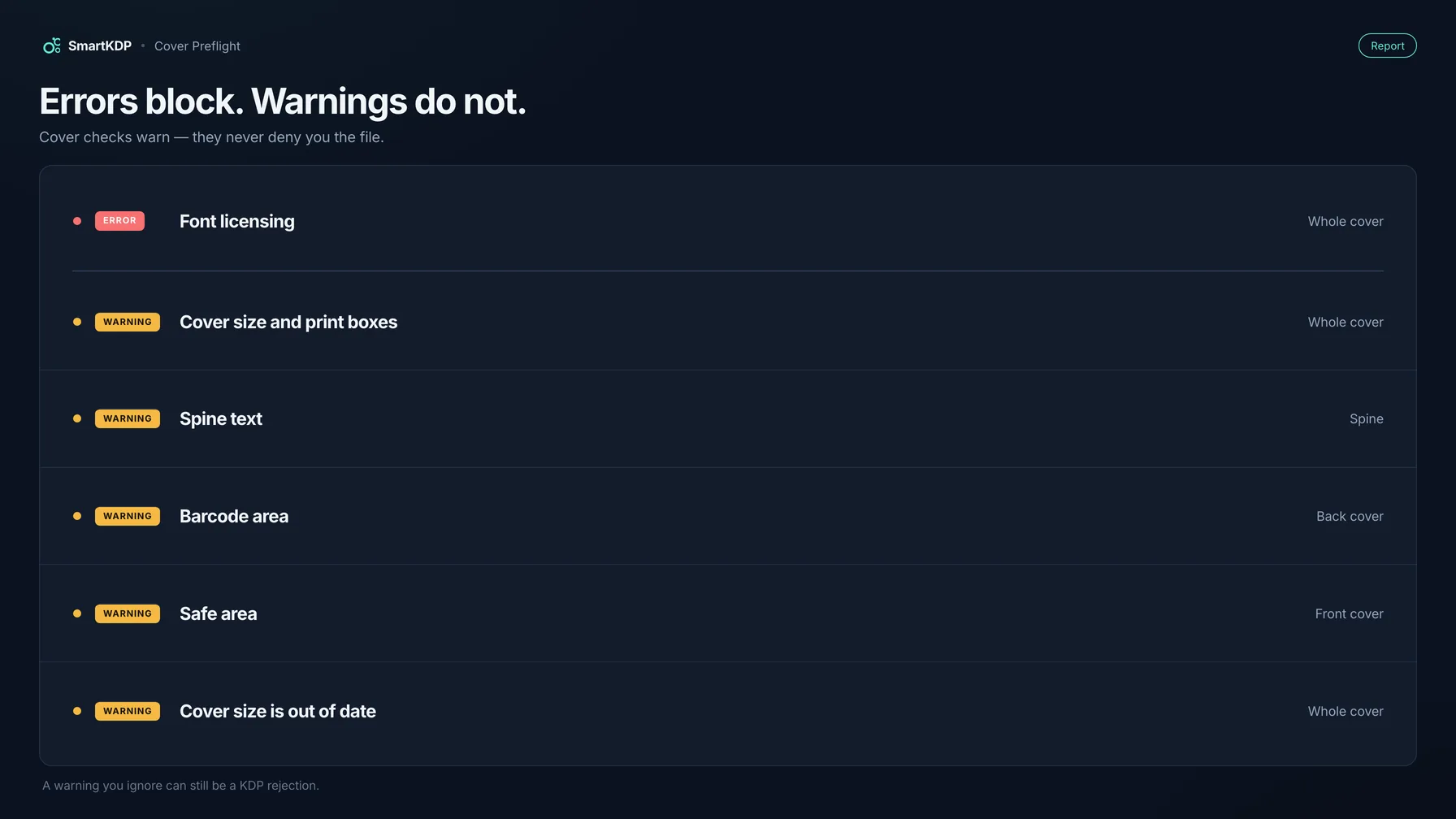
- Error blocked the export. You do not download a PDF that failed the gate. Font licensing is this kind of check.
- Warning did not. You still get the file. The wrap checks — Cover size & print boxes, Spine text, Barcode area, Safe area, Cover size is out of date — warn on purpose: you may have proof-copied this exact wrap. Findings still name the panel (Back cover, Spine, Front cover, Whole cover).
A warning you ignore can still be a KDP rejection. Preflight is not Amazon’s review. Print Previewer can still reject a file you were warned about, and the email may name one problem when the file has three.
How to catch all of it before you upload
- Finish the interior. Write down page count, trim, ink, paper, paperback vs hardcover.
- Open Cover Designer and create the wrap from those values — one page: back, spine, front.
- Read the live guides (bleed, trim, folds, safe area, barcode). They recompute if page count changes.
- Keep spine text off until you are above KDP’s page threshold. Keep the barcode rectangle empty unless you are placing a barcode that meets KDP’s rules.
- If the interior grew or shrank, take the Cover size is out of date update — or accept that you are exporting a stale wrap on purpose.
- Run preflight before download. Fix every Error. Read every Warning.
- Export a single-page PDF, then Launch Previewer in KDP. After any later interior edit, start at step 1.
Need only the inches: KDP Cover Size Calculator.
When KDP rejects a file and does not say why
Do not upload a second time until something on this list changed.
- Read the notice twice. Size, barcode, spine, and “quality standards” are different jobs. If the block is title, description, or keywords, see Why KDP Rejected Your Book Listing.
- Re-export the interior, note the exact page count, and recompute the wrap. A file built for 180 pages fails size even when the art is identical.
- Delete spine text if the book has 79 pages or fewer. Clear the barcode keep-out. Pull type inside each panel. Strip leftover template text.
- Embed fonts, flatten, unlock the PDF. Confirm placed images are 300 DPI at size.
- Launch Print Previewer. If it is clean and review still fails, order a proof copy. Change one family of issues per resubmit.
If a number here disagrees with the calculator inside your KDP account, the account wins.
FAQ
Why did KDP reject my cover?
A wrap that does not match this interior: wrong overall size, spine text at or under the page threshold, art in the barcode location, type too close to trim or folds, images under 300 DPI, or fonts that did not embed. Work the checklist in that order.
Why does KDP say my cover is the wrong size?
The PDF is not two trims plus spine plus bleed for the page count and paper you selected. Recalculate from the manufactured interior PDF. Hardcover uses a different wrap than paperback. Confirm against KDP’s cover calculator in your account.
How many pages do I need for spine text on KDP?
KDP only prints spine text on books with more than 79 pages. Cover Creator uses an 80-page minimum. Below that, remove the type. Above it, keep at least 0.0625 in clear of each fold.
What is the KDP barcode area on the back cover?
A reserved rectangle. If you do not place a barcode, KDP places one and rejects covers with images or text there. Suggested size is 2 in × 1.2 in, at least 0.25 in from spine and trim. Hardcover insets differ — check hardcover help.
Does KDP require PDF/X-1a for covers?
KDP requires a qualifying single-page cover PDF. For manuscripts it prefers PDF/X-1a. That export style does not fix wrong dimensions. Always pass Print Previewer.
Why was my cover rejected with no useful error?
Start with page-count drift — the interior changed and the wrap did not. Then spine text, barcode collision, leftover template layers, unembedded fonts, and missing bleed. Launch Print Previewer on a rebuilt file before you write support.
Related tools
- Cover Designer — wrap editor, live guides, preflight before export
- KDP Cover Size Calculator — spine width and full-wrap size with bleed
- All free tools
Disclaimer
Amazon, Kindle, and Kindle Direct Publishing (KDP) are trademarks of Amazon.com, Inc. or its affiliates. SmartKDP is not affiliated with, endorsed by, or sponsored by Amazon. Confirm cover dimensions and file requirements in your KDP account and current help docs before publishing.