Exporting and publishingLesson
How to check your book's print colors before publishing
See your cover and color pages the way a press will print them: which colors go dull, where the ink is heaviest, and one-click fixes before you upload.
On this page
In short
Turn on Print color in the bar along the bottom of the editor to see a cover or color page the way a standard US press will print it. Then check which colors will come out duller, where the ink is heaviest, and fix them in one click before you export.
Screens and presses make color in different ways. A screen mixes light, so it can show a blue or a green more vivid than any ink. A press mixes four inks on paper, so those colors print duller than they looked when you designed them. Print color shows you the difference before you order a proof copy, not after.
The view, the one-ink views and the fixes come with the Publisher, Studio and Founders' Lifetime plans. The two print checks it adds run on every plan, wherever your book's other print checks show.
Check your colors#
Turn on Print color
Open your book. In the bar along the bottom of the editor, click Print color, next to Screen. The page redraws the way it will print, and the Print color panel opens on the right.
Choose your printer and paper
Under Printer, pick KDP, IngramSpark or Other. The choice decides which ink limit, if any, the panel and your export checks hold the book to. Other lets you type the limit your printer gave you.
Under Paper, pick what your book prints on: glossy or matte for a cover, white or cream for an interior. If your book can only print on one paper, the panel simply names it.
Find the colors that will change
Under Show, click Out of range. Everything the press can print turns gray. Whatever stays in color is a color the press can't reach, and it will print noticeably duller than it looks on screen.
Check the ink
Click Ink to see where the page carries the most ink, from light to heavy. Then click C, M, Y or K to see one ink at a time. Black text that shows up on all four inks is printed in four layers, which can look soft at small sizes.
Fix what the press can't reach
Scroll the panel to Colors the press can't reach. Each row shows your color, the color it will print as, and how many objects use it. Click Bring into range to swap one color for the closest one the press can print, or Fix all for every row at once.
Screen colors and print colors, side by side#
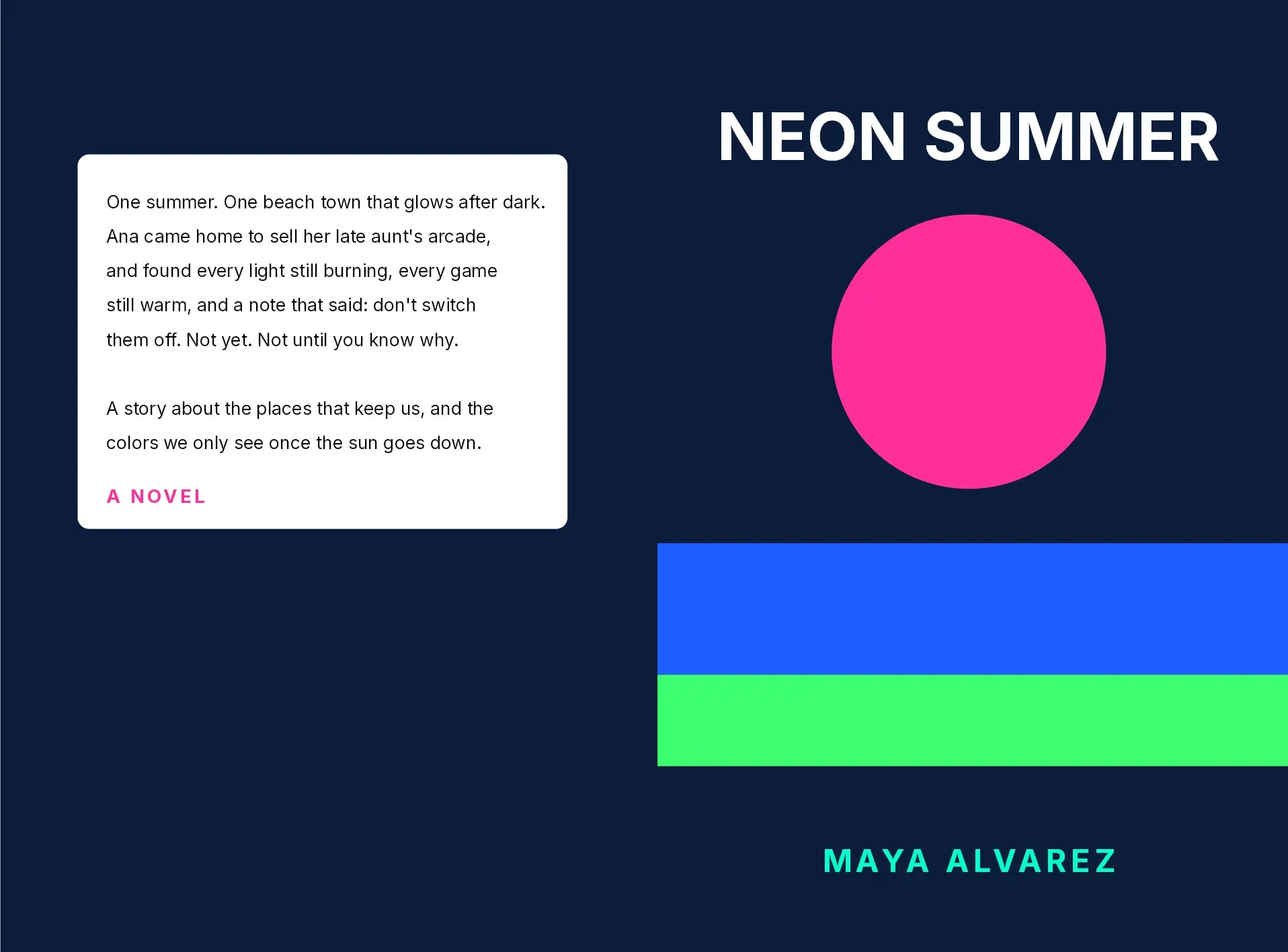
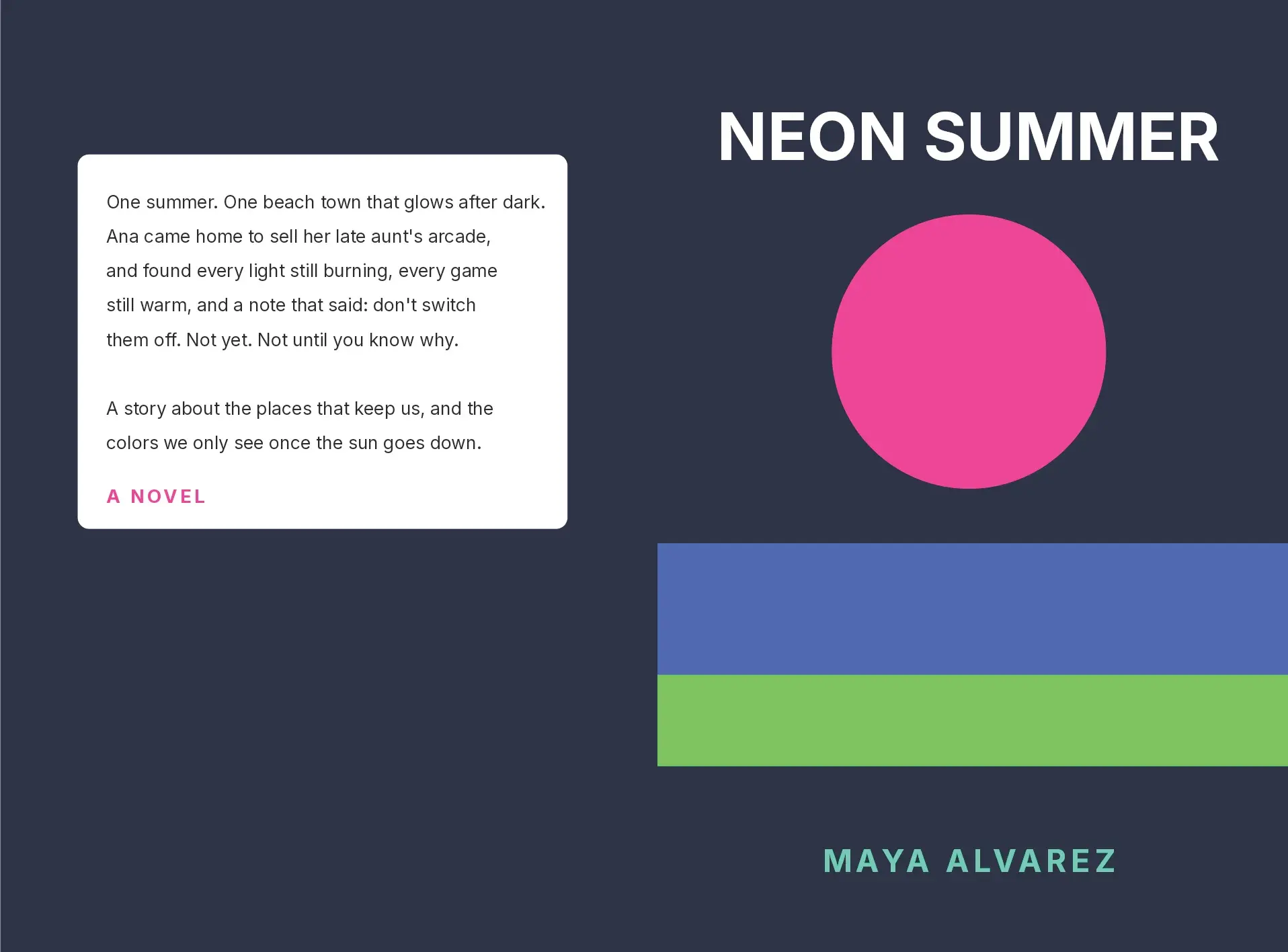
Drag the divider to compare. Switch paper to see how the same cover changes from glossy to matte.
Reading the panel#
| In the panel | What it tells you |
|---|---|
| As printed | The page in the colors it will print in, on the paper you picked |
| Out of range | Only the colors the press can't reach stay in color |
| Ink | Where the page carries the most ink |
| C, M, Y, K | One ink at a time: cyan, magenta, yellow and black |
| Heaviest ink | The most ink anywhere on this page, as a percentage. Four full inks would be 400% |
| Areas over N% | How many areas pass your printer's ink limit. Shown only when the printer has one |
| Out of range, as a % | How much of this page uses colors the press can't reach |
The numbers describe the page on screen and are marked as approximate. When you export, the print checks look at the whole book: Ink coverage, only when your printer has an ink limit, and Colors the press can't reach, which is advice and never stops an export.
Go back to screen colors#
Click Back to screen colors at the bottom of the panel, or Screen in the bottom bar. Print color only changes what you see. Your book and its exported files stay exactly as they were, apart from any fixes you chose to apply.
For the rest of what KDP checks in a cover file, from bleed to fonts, read KDP cover file requirements.
Common questions
Why do my colors look duller in Print color?
A screen makes color from light, and it can show brighter blues, greens and pinks than ink on paper can reach. Print color shows those colors the way a standard US press prints them, so what you see is closer to the book that arrives.
Is Print color an exact match for my printed book?
It is a close simulation of a standard press, not a guarantee. Glossy paper is the closest match; on other papers the panel marks the view as approximate. Areas where see-through objects overlap can differ the most, and the panel says so too.
Does KDP have an ink limit?
KDP publishes no ink limit, so with KDP as the printer the Ink view shows where a page carries the most ink without flagging anything. IngramSpark asks for no more than 240% ink; pick it as the printer and areas over that limit are counted and checked when you export.
Will Bring into range change my pictures?
No. It changes the colors of shapes, text and design colors you set in the editor. Pictures are never recolored. Each fix is one undo step.
Does Print color work on black-and-white books?
Yes. A black-and-white interior shows in the grays it will print, which is useful for checking that a picture or a tinted box still reads once the color is gone.
Try it on your own book
Open a book in SmartKDP and follow the steps above. It takes about 5 minutes.