ImagesLesson
How to remove an image background
Select a picture in the editor, open Cut out, and take its background off. The free browser tool is not available yet, so this spends credits from your plan.
On this page
In short
Select the picture and click Edit image… in the toolbar along the top of the canvas. Open Cut out, click Remove background, and click Use this when the before-and-after looks right.
A cover photo, a product shot, a portrait for the back of a book: the subject is the part you want, and the room behind it is in the way. Once that picture sits on a new background, every leftover edge shows. The free page, Background Remover for Book Covers, tells you the in-browser cut-out is not available yet. In the editor you can take the background off, look at the edge, and undo it, before the picture is part of a file you upload.
Remove background comes with the Creator, Publisher and Studio plans and spends credits from your plan's monthly allowance. Founders' Lifetime doesn't include AI features. You can still open the free tool page on every plan; that page says the cut-out itself is not available yet.
Cut out the background#
Select the picture
Click the picture on the page. A box appears around it, and the toolbar along the top of the canvas shows the image controls, including Edit image….
Open Edit image
In that toolbar, click Edit image…. The Edit image panel opens on the right. A bar labeled Edit image also sits over the picture, with Done at its end. Nothing on the page changes yet.
Open Cut out
In the Edit image panel, click Cut out. The tab shows Remove background, with the credit cost beside it. Under that, Remove the background here is the in-browser cut-out. On the live site that one says it isn't available yet.
Remove the background
Click Remove background on the row that shows the credit cost. That is 2 credits. The picture is sent, and the panel shows progress. While it runs, Cancel — you'll be refunded stops it without a charge.
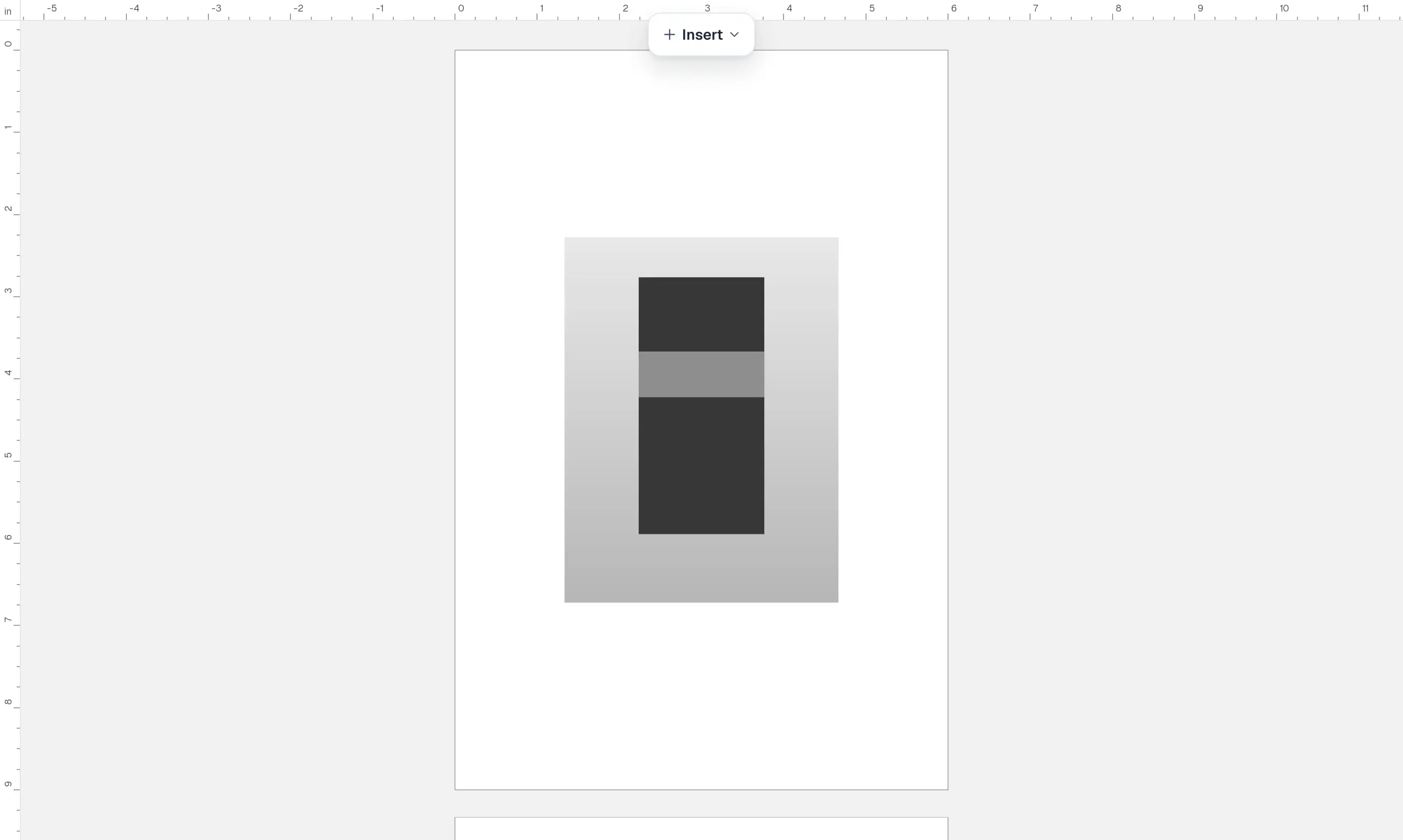
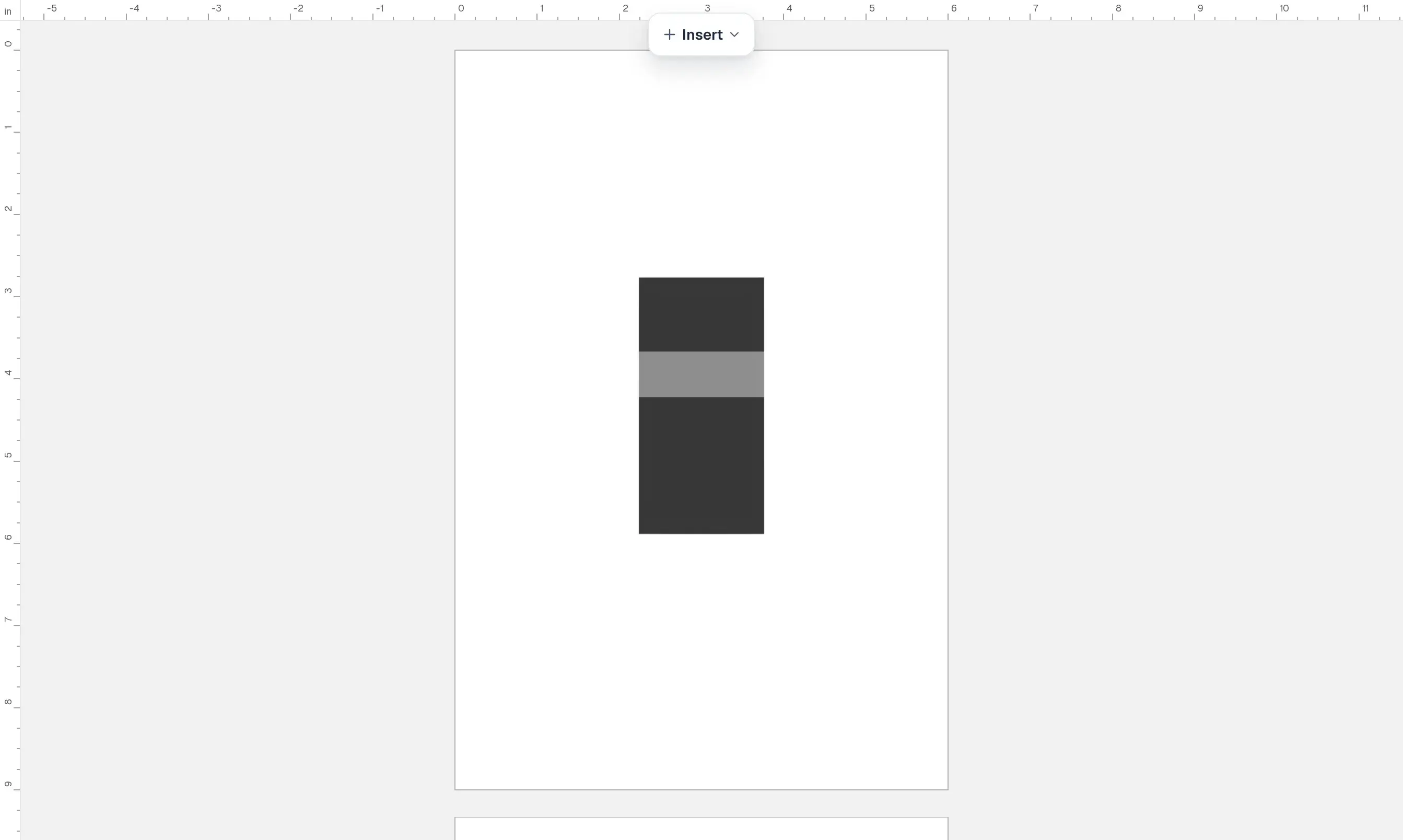
When it finishes, a before-and-after appears on a checkerboard, with a line you can drag. Left of the line is the original. The pixel size is printed under it.
Keep the cut-out
If the edge looks right, click Use this. The picture on the page becomes the cut-out, and the background is gone. If it does not, click Try again. The page stays as it was.
The picture, before and after#
Drag the divider to compare. Look along the edge of the subject, where a rim of the old background would show.
Reading the Cut out tab#
| In the panel | What it tells you |
|---|---|
| Remove background | The cut-out that spends credits. The chip beside it is the cost |
| Before and after — Remove background | Drag the line. Left of it is your original picture |
| Use this | Puts this result on the page |
| Try again | Throws this result away. The page stays as it was |
| Remove the background here | The in-browser cut-out. On the live site it says cutting out in your browser isn't available yet |
The comparison is a preview. The picture on the page, after Use this, is the one you will export.
Put the original back#
Click Done on the bar over the picture, or Done editing at the top of the panel, to leave Edit image. The cut-out stays on the page. Press ⌘Z (Ctrl+Z on Windows) to put the original picture back. Choosing an image on the free tool page still does not cut it out: that page says the in-browser cut-out is not available yet.
To check the picture has the pixels to print at the size you place it, use Convert Image to 300 DPI.
Common questions
Why does the free background remover say it isn't available?
Not yet. On Background Remover for Book Covers, after you choose an image, Remove background stays off and the page says cutting out in your browser isn't available yet. The cut-out that works is Remove background in the editor, and it spends credits.
Does removing the background change my original file?
No. Use this swaps the picture on the page for the cut-out. The file you uploaded stays in your library. Press ⌘Z (Ctrl+Z on Windows) and the page shows the original again.
How many credits does it cost?
2 credits, at the standard rate. The chip beside Remove background shows that cost before you click. If you click Cancel — you'll be refunded while it is still running, you are not charged. Nothing lands on the page until Use this.
The cut-out looks like it still has a white background. Did it fail?
Often, no. The comparison draws transparency as a checkerboard, so you can see what was removed. A white box in another app is how many programs show transparency. Drag the divider across the edge, then look at the picture on your page after Use this.
Can I get the background back?
Yes. Before Use this, click Try again and the page is untouched. After Use this, press ⌘Z (Ctrl+Z on Windows). The cut-out is one ordinary edit.
Try it on your own book
Open a book in SmartKDP and follow the steps above. It takes about 6 minutes.